
Linux
Debian 64-bit (amd64)
stacher7_7.1.12_amd64.deb · 97.7 MiBThe verified Stacher Linux download is a Debian amd64 package. This guide explains what the official package is, how to install it on a compatible Debian-based system, what to do on Chromebook Linux, and how to separate Linux permissions from yt-dlp, FFmpeg or source-site failures.
Quick answer: Download stacher7_7.1.12_amd64.deb from the first-party endpoint, confirm that your Linux environment is 64-bit Debian-compatible, install the local package with your distribution's normal package manager and test one permitted URL in a writable folder. The official endpoint was checked on August 22, 2026; this page does not claim an official AppImage, RPM or ARM build.
The Linux button uses api.stacher.io and redirects to Stacher's release storage. The current verified file is a Debian 64-bit package; use it only when your distribution and architecture are compatible.
Debian 64-bit (amd64)
stacher7_7.1.12_amd64.deb · 97.7 MiBThis independent site does not mirror or repackage the .deb. Compare the current filename and source with the official Stacher release details before opening it. Open official download details
The current first-party Linux handoff resolves to stacher7_7.1.12_amd64.deb. The filename identifies a Debian package for the amd64, also called x86_64, architecture. It is a normal package file, not a portable archive and not a universal binary for every Linux computer. Check the operating system and architecture before you run it; an ARM Chromebook, ARM single-board computer or unsupported distribution needs a different decision.
A Debian-based desktop such as Ubuntu, Linux Mint, Debian or another compatible derivative may be able to install a local .deb through its graphical package installer or command line. Compatibility is still determined by the package metadata and your distribution's dependencies, not by the word Linux in the filename. Keep the original filename until the install and first launch succeed, and use the official source rather than an old mirror with a similar name.
| Build | Verified file | Verified size | Use it when |
|---|---|---|---|
| Linux Debian amd64 | stacher7_7.1.12_amd64.deb | 97.7 MiB / 102,470,296 bytes | Your system is a compatible 64-bit Intel or AMD Debian-based environment |
| Windows x64 | stacher-7.1.12-setup.exe | Not a Linux package | Use only on 64-bit Windows |
| macOS arm64 or x64 | Stacher_Setup_7.1.12_*.dmg | Not a Linux package | Use only on the matching Mac architecture |
The verified endpoint checked for this guide resolves to the Debian amd64 .deb file. It does not establish an official AppImage, RPM, Flatpak or ARM release. If a forum or package index lists another format, treat it as a separate community or third-party source until Stacher publishes a matching first-party link.
That distinction matters for updates and security. An AppImage may be convenient, but convenience does not prove provenance, current version or compatibility with Stacher's managed components. Use the Debian package when it matches your system, or follow the official release page for a future platform-specific file.
The current verified release is Stacher 7.1.12, checked on August 22, 2026. The official changelog marks 7.1.12 as latest but does not expose a stable public release date.
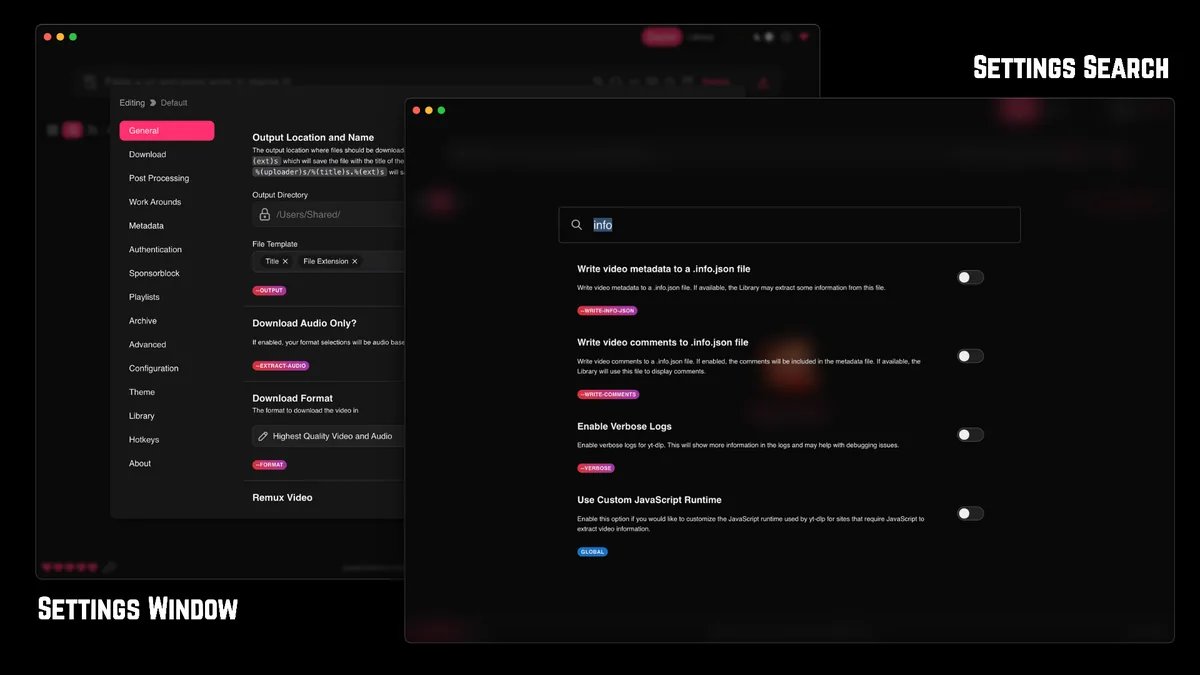
Download the completed .deb first; do not start diagnosing the application while the browser is still writing a partial file. In your file manager, confirm the filename contains 7.1.12 and amd64. If you use the terminal, place the file in a directory you own and keep the path short while testing. A failed package installation and a failed media download are different problems, so capture the first package-manager message before changing anything else.
On a compatible Debian-based system, the usual local-package flow is to open the file with the distribution's package installer or run sudo apt install ./stacher7_7.1.12_amd64.deb from the directory that contains it. Let the package manager resolve normal dependencies through your configured repositories. Do not replace a missing dependency with an unknown binary or a shell script copied from a forum.
Only when the Chromebook's Linux development environment exposes a compatible Debian amd64 userspace. The keyword research surfaced a narrow Chromebook/Debian installation question, but it did not prove that every Chromebook model or container supports this package. Confirm the container architecture and available storage first, then use the normal local .deb flow. There is no verified one-line installer in this guide.
If the container is ARM64, the package reports the wrong architecture, or the graphical application cannot start under the container's display setup, stop at that boundary. Do not work around it by downloading a random AppImage or repack and calling it official.
A package-manager error is useful evidence. Save the command, distribution version, architecture and first error line before asking for help.
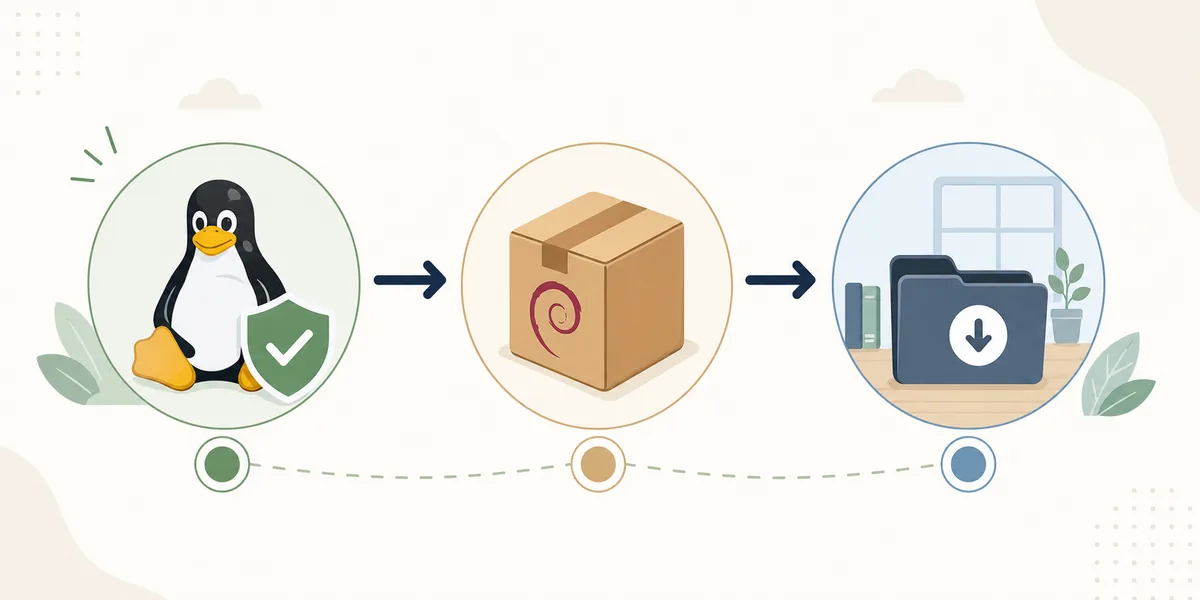
Stacher is the desktop interface; yt-dlp performs the supported extraction and transfer work. Keep the managed yt-dlp component unless you intentionally maintain a custom executable and can verify its path and version. A current application with an old extractor can behave differently from a current application with an updated managed component, so record both versions in the detailed log.
FFmpeg is a separate post-processing dependency. It is commonly involved when Stacher merges separate video and audio streams, remuxes a container, converts audio, embeds metadata or processes subtitle files. A transfer can reach completion while the final file is still being written. Wait for the post-processing state and read the log before deciding that the network download failed.
Choose a writable local output folder before testing. Avoid a protected system directory, a disconnected mount, a full drive or a cloud-synchronized path while you are establishing a baseline. Once one short permitted URL succeeds, add quality rules, subtitles, metadata or a playlist one change at a time.
| Stage | What to inspect | Why it matters |
|---|---|---|
| Extraction | Source URL, yt-dlp version and source availability | The app may be healthy while the extractor or source has changed |
| Transfer | Network response, fragments and destination space | A route or storage problem can look like a frozen job |
| Post-processing | FFmpeg path, permissions and final move | The media may already be present when merging fails |
Stacher writes completed media to the output folder selected in its settings or job options. That folder is separate from the .deb package, the application location and the yt-dlp executable path. Use the final destination printed in the job log instead of guessing from the install directory. A post-processing step can rename or move a temporary file after the transfer appears complete.
For diagnosis, choose a short folder inside your home directory and confirm that the current Linux user can create, rename and delete a small test file there. If that works but the normal destination fails, investigate mount permissions, ownership, disk space or a network share rather than reinstalling Stacher.
Stacher, yt-dlp, FFmpeg, the source website and the local filesystem have separate responsibilities. Change one layer at a time so the log remains useful.
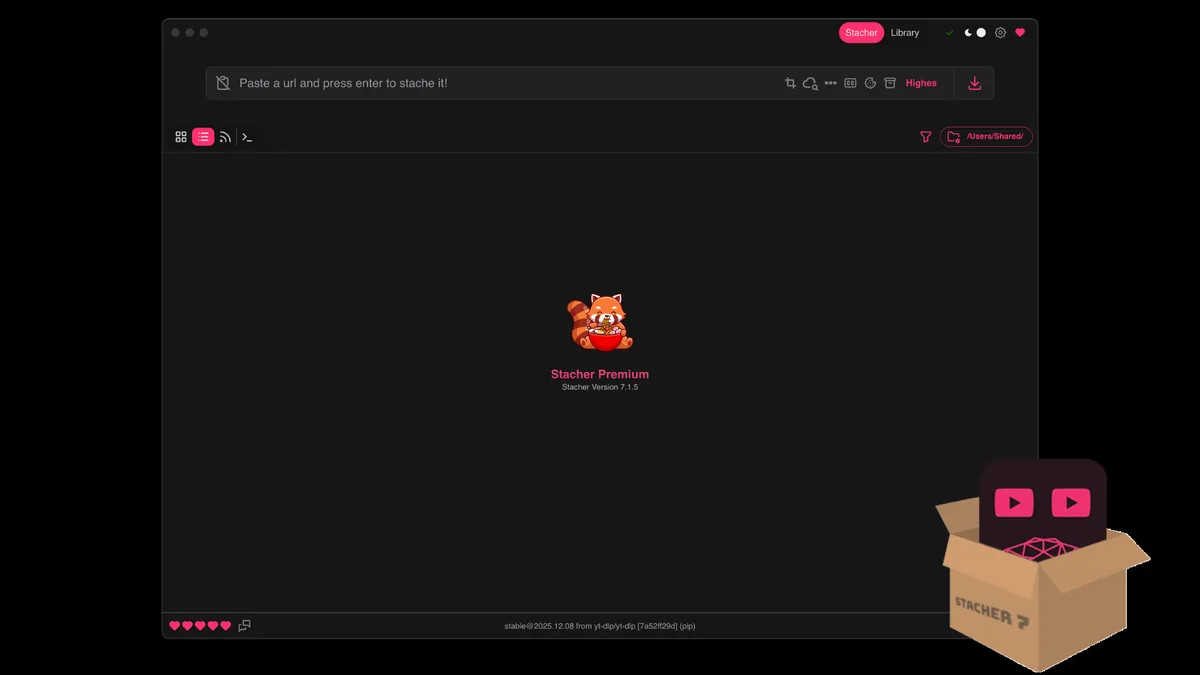
The verified Linux file is a Debian amd64 package. That is enough to document a real installation route, but it is not a promise that the same file works on Fedora, Arch, Alpine, ARM Linux or every container. If your system uses another package family, first look for an official Stacher release link rather than converting or repacking the .deb yourself.
The same boundary applies to AppImage and community package recipes. An AUR entry, a forum attachment or a third-party mirror may be useful to its own maintainers, but it is not automatically a Stacher official download. Check the publisher, package source, release version and update path separately. This site links the verified first-party handoff and labels the concept illustration on this page; it does not turn community packages into official assets.
Converting a .deb to another format can change dependencies, desktop entries, permissions or update behavior. It may be reasonable for an experienced administrator in a controlled environment, but the result is no longer the verified artifact described here. Keep that distinction clear when reporting a problem and do not present a converted package as an official Stacher build.
Platform support is a release fact, not something to infer from a similar filename or a successful download.
Start by classifying the failure. If the package will not install, inspect architecture, dependencies and the package-manager output. If the application installs but will not launch, inspect the desktop session, permissions and the exact launch message. If the interface opens but a job fails, update managed yt-dlp, test one permitted public URL, use a writable local folder and read the first specific log line. Reinstalling the same package rarely fixes a changed source website or a missing FFmpeg executable.
A job that reaches 100 percent can still be merging, converting, embedding metadata or moving the final file. Check CPU, disk space, mount availability and the post-processing log before canceling. If only one source fails, source availability or authorization is more likely; if every source fails, compare the simple baseline against network, extractor, storage and component settings.
| Symptom | Likely boundary | First useful check |
|---|---|---|
| Package says wrong architecture | ARM or unsupported package family | Confirm uname -m and use an official matching build if one exists |
| Application will not launch | Desktop session, permissions or incomplete install | Read the exact launch message and test from the installed menu |
| Download could not start | Old yt-dlp, unsupported URL, authentication or network | Update yt-dlp and test one public permitted URL |
| Permission denied | Output folder or mounted volume | Test a short local folder owned by the current user |
| FFmpeg not found | Missing or incorrect post-processor path | Check the active path and configure a trusted supported build |
| Old version still appears | Another copy or custom component path | Record the executable and version from the detailed log |
Use one public permitted URL, a default combined format, no custom arguments, no cookies, no proxy and a short local output path. If that succeeds, add one feature at a time. This controlled comparison is more useful than changing the package, extractor, format and destination together. Do not paste cookies, private URLs or full authenticated logs into a public issue.
The page covers authorized media only. A current Stacher package does not bypass private, paid, members-only or other access controls.
The first-party Linux endpoint currently resolves to Stacher 7.1.12 and was checked on August 22, 2026. Stacher and its managed yt-dlp component can have separate update cycles, so record both versions when diagnosing a regression. To update, finish active jobs, download the current package again from the first-party endpoint, install it through the normal Debian package flow and run one controlled test before restoring a large queue.
To uninstall, use the same package-management tools that your distribution uses and first identify the installed package name from the package manager. Removing the application does not automatically remove media in your chosen output folder. Review downloaded files, custom settings, logs and any separately installed FFmpeg or yt-dlp components before deleting them.
If only one extractor fails, update managed yt-dlp first; a full application reinstall is usually not the first diagnostic step.
The verified first-party Linux file is stacher7_7.1.12_amd64.deb. The API endpoint returned a redirect to Stacher's release storage, and the final package response was HTTP 200 with 102,470,296 bytes and a Debian package MIME type when checked on August 22, 2026.
The verified file is a Debian amd64 package, so compatible 64-bit Debian-based distributions are the intended route. Your distribution still decides whether dependencies and the desktop runtime are available; read the package-manager output rather than assuming every Linux derivative is supported.
Only when the Chromebook Linux environment exposes a compatible Debian amd64 userspace and a working desktop session. Check the container architecture and storage first. This guide does not provide or claim an official one-line Chromebook installer.
The verified endpoint for this page resolves to a Debian .deb package. It does not verify an official AppImage, RPM, Flatpak or ARM build. Treat other packages as separate community or third-party artifacts unless Stacher publishes a matching first-party link.
Not for every transfer. FFmpeg is commonly needed when Stacher merges separate streams, converts audio, remuxes a container or performs metadata and subtitle post-processing. Check the active path and the first post-processing error before reinstalling the application.
Stacher uses the output folder selected in its settings or job options. It is separate from the .deb package and application directory. Read the final destination in the detailed log and test a short folder inside your home directory when permissions are unclear.
Finish active jobs, download the current package from the official endpoint, install it through the normal Debian package flow and run one controlled test. Record the Stacher and managed yt-dlp versions separately because they can update on different schedules.
Usually the application and output folder are separate. Identify the installed package, remove the application with your distribution's package tools and review downloaded media, settings, logs and separately installed components before deleting anything else.