
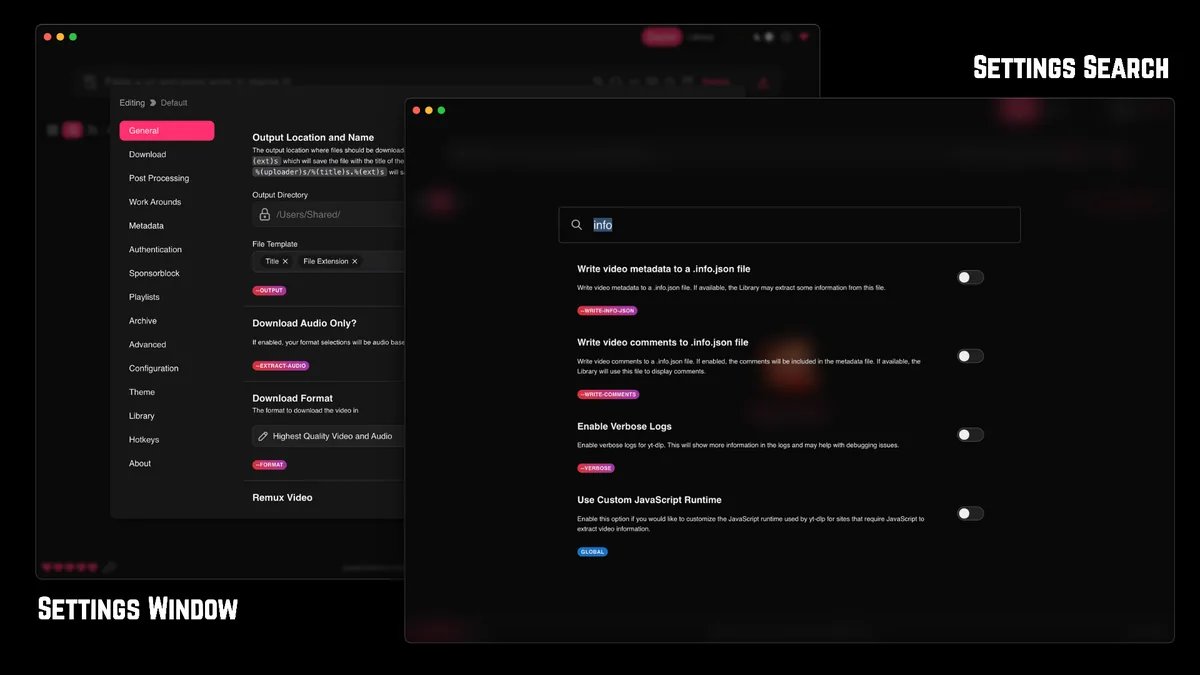
Run these checks before reinstalling Stacher
A reinstall is rarely the best first response. Stacher can open correctly while its managed yt-dlp component is old, and yt-dlp can be current while a single source URL is unavailable or access-controlled. A controlled public test narrows the problem quickly.
Close duplicate Stacher windows, pause other large transfers and make sure the destination drive has free space. Use a normal local folder for the test. Network shares, synchronized folders and protected system locations introduce extra permission and locking variables.
- Open Stacher and update the managed yt-dlp component.
- Restart Stacher after the update.
- Paste one short public URL that does not require an account.
- Choose a simple combined video-and-audio format.
- Save to a new local folder and start one job.
- Open the log if the job remains waiting or reports that the download could not start.
Do not add cookies, a proxy, custom arguments and post-download scripts all at once. Each extra variable makes the original failure harder to isolate.
Find the stage where the download fails
Extraction happens first. Stacher passes the URL to yt-dlp, which identifies the webpage and available streams. Messages about unsupported URLs, unavailable video data, signatures, player responses or login requirements usually belong to this stage. Updating yt-dlp and confirming the URL in a browser are the first checks.
Transfer happens after extraction. Fragment errors, timeouts, HTTP status codes, throttling and connection resets point to the source server or network path. Post-processing happens last. FFmpeg errors, merge failures, permission errors and missing output files occur after some or all media data has already arrived.
| Log stage | Typical symptom | First response |
|---|---|---|
| Extraction | Unable to download video data or unsupported URL | Update yt-dlp and test the page in a browser |
| Transfer | Waiting, fragments retrying or speed falls to zero | Test network and another public URL |
| Post-processing | Download finishes but final file is missing | Check FFmpeg, disk space and folder permission |
| Archive / queue | Stacher skips or repeats an item | Review archive and playlist settings |
Copy the useful error lines before restarting. A screenshot of only the final red status often omits the cause printed immediately above it.
Handle source, subtitles and authentication errors
If one website fails while another works, treat it as a source-specific problem. The site may have changed its player, removed the media, restricted it by country, introduced an account check or exposed a different set of formats. Wait for an yt-dlp update when the extractor is broken rather than inventing format strings.
Subtitles are separate resources. Uploaded subtitles, translated tracks and automatically generated captions may appear under different language codes. A request can fail because the chosen track does not exist even when the video downloads normally. List or review available subtitle tracks before forcing one code.
Authentication should only be used for an account that legitimately has access and where saving the content is permitted. Cookies expire, can expose account access and may trigger security checks. Do not download random cookie files or use account data supplied by strangers.
- Verify that the source still plays and is available in your region.
- Try without subtitles to separate media and caption failures.
- Remove a forced audio language when the source does not provide it.
- Use legitimate authentication only when the source and your rights require it.
- Use the platform's official offline feature when exporting is not allowed.
This site does not provide private-video, members-only, age-check or paid-content bypass instructions.
Fix FFmpeg and output-folder problems
A Stacher job can finish the network download and still fail to create the expected MP4 or MP3. Check whether separate video and audio files exist in the output folder. If they do, the merge or extraction stage is the likely problem. Confirm FFmpeg is installed through the supported Stacher flow and remove custom post-processing scripts for one test.
Security software can temporarily scan or lock new executables and large media files. Do not disable protection globally. Verify the official download source, allow the specific trusted application through the normal operating-system controls if appropriate, and retry in a new user folder.
- Keep twice the expected final file size available for separate streams and temporary output.
- Avoid filenames or folder paths that are extremely long.
- Close media players or editors that may have the destination file open.
- Reset the preset when an accidental format edit causes repeated failures.
- Disable post-download scripts until a normal merge succeeds.
If every source fails after a clean public test, capture the Stacher version, yt-dlp version, operating system and relevant log lines before seeking support.
Document a Stacher not downloading test
A useful diagnostic record turns Stacher not downloading from a vague symptom into a reproducible case. Write down the Stacher version, yt-dlp version, operating system, test time, source hostname and selected preset. Do not publish a private URL, account cookie, full local username or any signed media address from the verbose log.
Run the same short public URL twice: first with the known compatibility preset and then, only if needed, with the failing preset. Keep the network, folder and application version unchanged. If the simple preset works, compare the requested codec, subtitle, audio language and post-processing steps. If both fail at extraction, focus on yt-dlp and source availability instead.
When Stacher is not downloading during transfer, record the last HTTP or fragment message and whether another supported source works. When the failure occurs after 100 percent, record FFmpeg output, temporary filenames and available disk space. These details identify whether support should investigate the extractor, network path or local processing stage.
Restore changed settings after the test. A copied custom argument can remain active and affect unrelated jobs later. Keep a screenshot of the relevant settings and a short text excerpt from the log so the case can be compared after an update without exposing credentials.
- Include exact versions and the last meaningful error line.
- State whether Stacher was downloading data before the failure and whether one ordinary public URL completed successfully.
- Distinguish not downloading media from downloading successfully but failing to create the final output.
- Remove cookies, tokens and personal paths before sharing a log.
A controlled Stacher not downloading report shows exactly when downloading stopped and is more actionable than reinstalling repeatedly or sharing only the final status message.
Stacher not downloading FAQ
Why is Stacher stuck on waiting?
The job may be queued, retrying extraction, waiting on a source response or blocked before transfer. Update yt-dlp, run one job and inspect the log for the last completed stage.
What does download could not start mean?
It is a general outcome. The detailed log may show an invalid URL, source change, access requirement, folder problem or network failure. Use the detailed line rather than the summary alone.
Why does Stacher keep redownloading the same item?
Review playlist and archive settings. A missing or changed archive file, a different media identifier or a renamed output does not always tell yt-dlp that the content was already saved.
Why are subtitles missing?
The requested language or subtitle type may not exist. Uploaded and automatic captions can use different track codes. Review available subtitles and test media download separately.
Should I reinstall Stacher?
Only after update, public-URL, output-folder and log checks fail. Reinstalling does not fix a source extractor that needs an yt-dlp update.