
Confirm what is actually slow
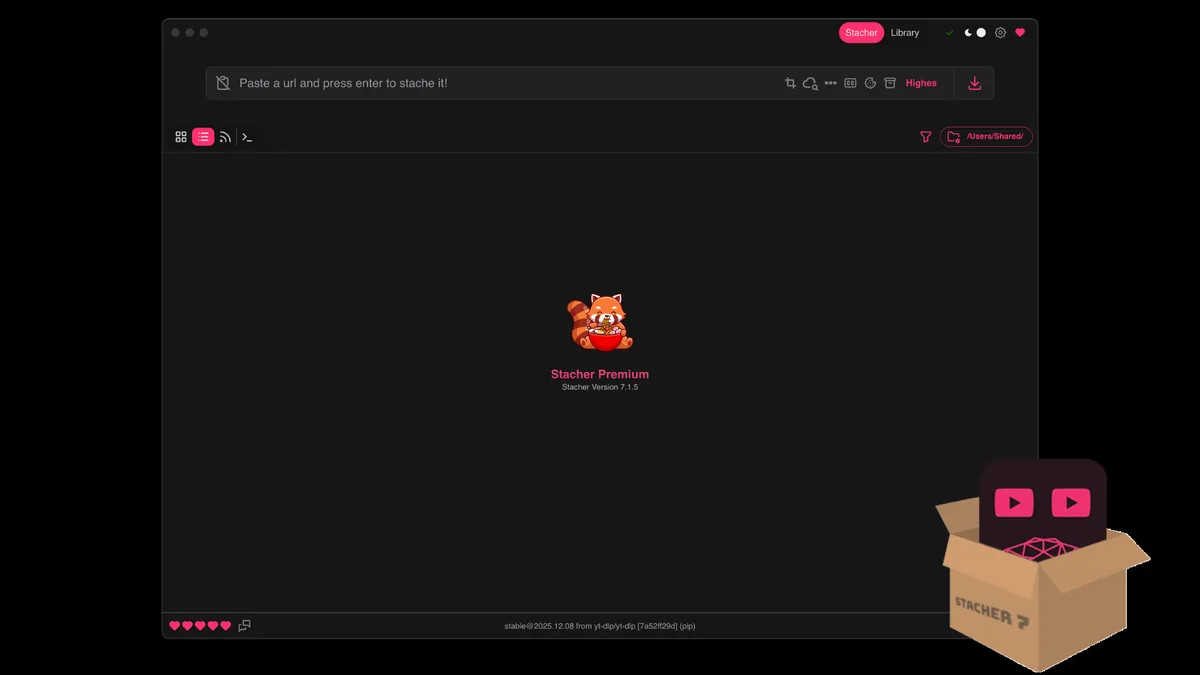
Stacher can spend time extracting the URL, downloading one or more streams and post-processing them. Only the transfer stage has a network download speed. A long pause after the progress reaches completion may be FFmpeg merging, remuxing or extracting audio. CPU and disk activity can remain high while network traffic is near zero.
Run one controlled test. Stop other Stacher jobs, choose one short public video, use a simple preset and observe the log or progress fields. Compare the result with another supported source. If only one site or one video is slow, a global application setting is unlikely to be the cause.
To increase Stacher download speed, compare one short authorized URL with the same format and output folder. Record average KB/s, then change only one factor—VPN route, concurrency or destination drive—so source variation is not mistaken for an improvement.
- Pause other downloads and streaming applications.
- Test without a VPN or proxy, then compare the normal route.
- Use a wired or stable Wi-Fi connection.
- Watch whether speed is low during transfer or only after transfer finishes.
- Repeat with another authorized public source.
500 KB/s is about 4 Mbps. Compare like-for-like units before deciding the result is far below your internet plan.
Common causes of slow Stacher downloads
The source may throttle particular media, formats, accounts, regions or IP ranges. Your internet service can be fast in a speed test while the route to one media host is congested. A VPN may improve a poor route in rare cases, but it more often adds latency or places many users behind an overloaded exit server.
High-quality media can use many fragments or separate streams. Parallel fragments may help on some sources, but excessive concurrency can trigger throttling, retries or temporary blocks. More jobs do not automatically mean more total throughput. Each job also competes for disk and CPU during merge or conversion.
| Cause | How to recognize it | Reasonable response |
|---|---|---|
| Source throttling | One site is consistently capped | Wait, update yt-dlp or use official offline options |
| VPN or route | Speed changes sharply by network path | Use the faster legitimate route |
| Parallel jobs | Every job slows when the queue grows | Reduce simultaneous downloads |
| Post-processing | Network stops while CPU or disk stays busy | Wait for FFmpeg or choose less conversion |
| Disk bottleneck | Downloads pause during writes or antivirus scans | Use a healthy local drive with free space |
Do not repeatedly rotate accounts, cookies or IP addresses to evade a platform limit. Respect access controls and service terms.
Safe ways to improve Stacher download speed
Keep yt-dlp current because extractor and transfer fixes are released frequently. Download one or two jobs at a time, especially on a mechanical drive or slower connection. Save to a local disk and move the finished file later rather than writing temporary fragments directly to a network share.
Choose the format you actually need. Downloading 4K video and converting it to a lower-resolution compatibility file costs more transfer and processing time than selecting an appropriate stream at the start. For audio, keeping M4A or Opus is faster than downloading and transcoding to WAV or MP3 when the destination accepts the original codec.
- Update Stacher's managed yt-dlp component.
- Reduce simultaneous downloads and fragment concurrency.
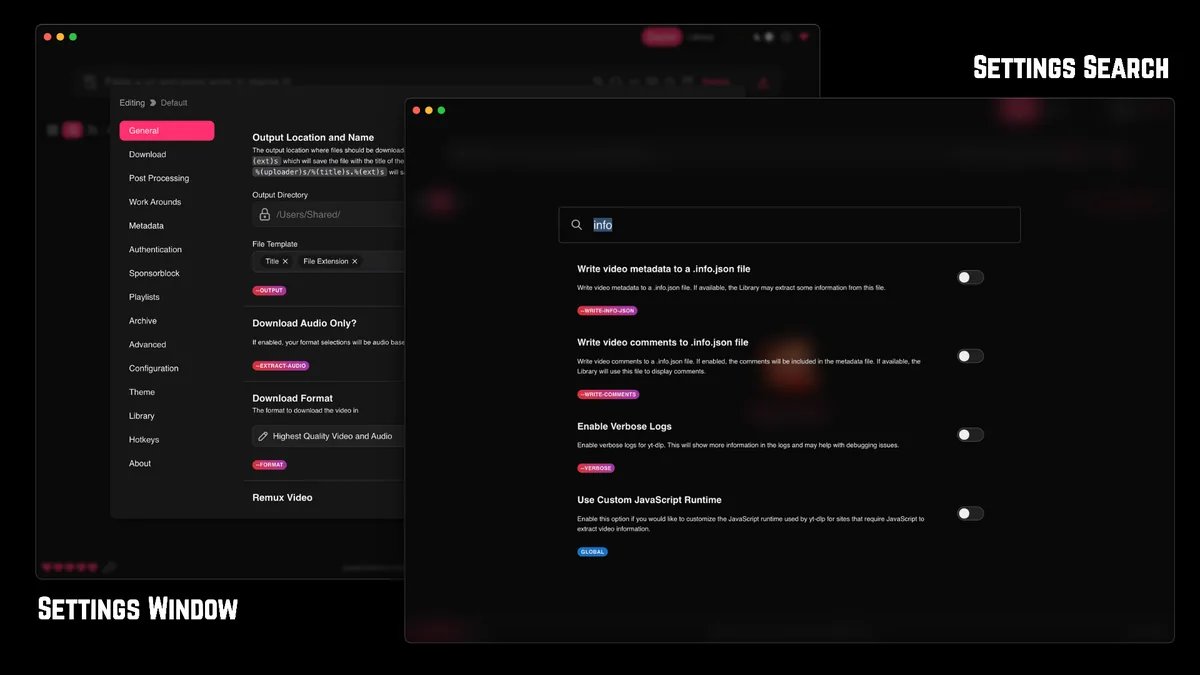
- Disable unnecessary metadata, thumbnail and conversion steps for a speed test.
- Write to a local SSD with adequate free space.
- Test at another time if the source is congested.
- Use a compatibility format only when your playback target requires it.
There is no honest setting that guarantees full line speed. The source remains the upper limit.
Changes that can make speed worse
Setting extreme parallelism can create more retries than progress. Leaving several large playlists active hides which item is slow and can exhaust disk space. Re-encoding every download to a different codec turns a network task into a long CPU task, which can look like a slow download from the interface.
Avoid unknown speed patches, modified Stacher installers and copied yt-dlp arguments that you do not understand. They can introduce unstable behavior or security risk. Change one measurable setting at a time and keep a working preset available for comparison.
Record the test URL, time, chosen format and approximate speed before each change. A small comparison log prevents normal source variation from being mistaken for an improvement caused by a setting.
- Do not force dozens of concurrent fragments without testing.
- Do not use a VPN automatically; compare it against the direct route.
- Do not confuse a large high-resolution file with a slower connection.
- Do not restart during FFmpeg merge unless the log shows a real failure.
If the public comparison source is also slow, check the local connection, storage health and security-software activity before blaming Stacher.
Build a useful Stacher download speed comparison
Measure Stacher download speed with the same short authorized URL, format and destination folder. Run one direct-network test, then one comparison after changing a single factor such as time of day, Wi-Fi connection or VPN route. Record average transfer speed rather than the brief peak shown when a fragment starts.
Keep bytes and bits separate. A display of 500 KB/s is approximately 4 Mb/s before protocol overhead, while an internet plan is usually advertised in megabits per second. Also note the selected file size. A 4K stream can take much longer than a 720p stream even when both transfer at the same rate.
Use the log timestamps to separate extraction, transfer and finalization. Stacher download speed is not measurable while yt-dlp is reading page data or while FFmpeg is merging local files. If transfer finishes quickly but conversion takes ten minutes, reduce unnecessary transcoding or use a source-compatible format rather than increasing network concurrency.
Repeat the comparison with another supported source. Similar results across sources point toward the local network, storage or security scanning. A cap affecting only one host is more consistent with source throttling or routing. Preserve the working configuration and avoid drawing conclusions from a single unusually fast or slow run.
- Use one active job and the same format for every comparison.
- Record average KB/s, total size and transfer duration.
- Note CPU and disk activity during FFmpeg processing.
- Change only one network or concurrency setting per test.
A Stacher download speed fix is credible only when the same controlled test improves without adding errors, retries or missing fragments.
Stacher download speed FAQ
Why is Stacher downloading at 500 KB/s?
The source may be throttling the stream, your route may be congested or multiple jobs may be sharing bandwidth. Test one public source and compare without a VPN.
Can I choose a track speed in Stacher?
Stacher can expose yt-dlp transfer options, but it cannot command a remote server to send faster. Concurrency may help or hurt depending on the source.
Does a VPN make Stacher faster?
Usually not. A VPN can change routing, but it also adds overhead and may use a congested exit. Compare both routes and respect the source's terms.
Why is Stacher slow after reaching 100 percent?
The app may be merging video and audio, extracting audio, embedding metadata or scanning the output. That is processing time rather than download speed.
Will more simultaneous downloads finish faster?
Not necessarily. Jobs share bandwidth, disk and CPU, and high concurrency can trigger more retries or throttling.
How can I increase Stacher download speed?
Use one short authorized test, update yt-dlp, pause other jobs and compare the direct route with a VPN only if necessary. Change one factor at a time and separate transfer speed from FFmpeg processing.