
Enable audio-only mode and FFmpeg
Stacher relies on yt-dlp to identify the source audio and commonly uses FFmpeg to extract or convert it. Before changing the format, confirm that Stacher's managed yt-dlp component is current and that FFmpeg is available. Without FFmpeg, the original audio stream may download but MP3 extraction or metadata processing can fail afterward.
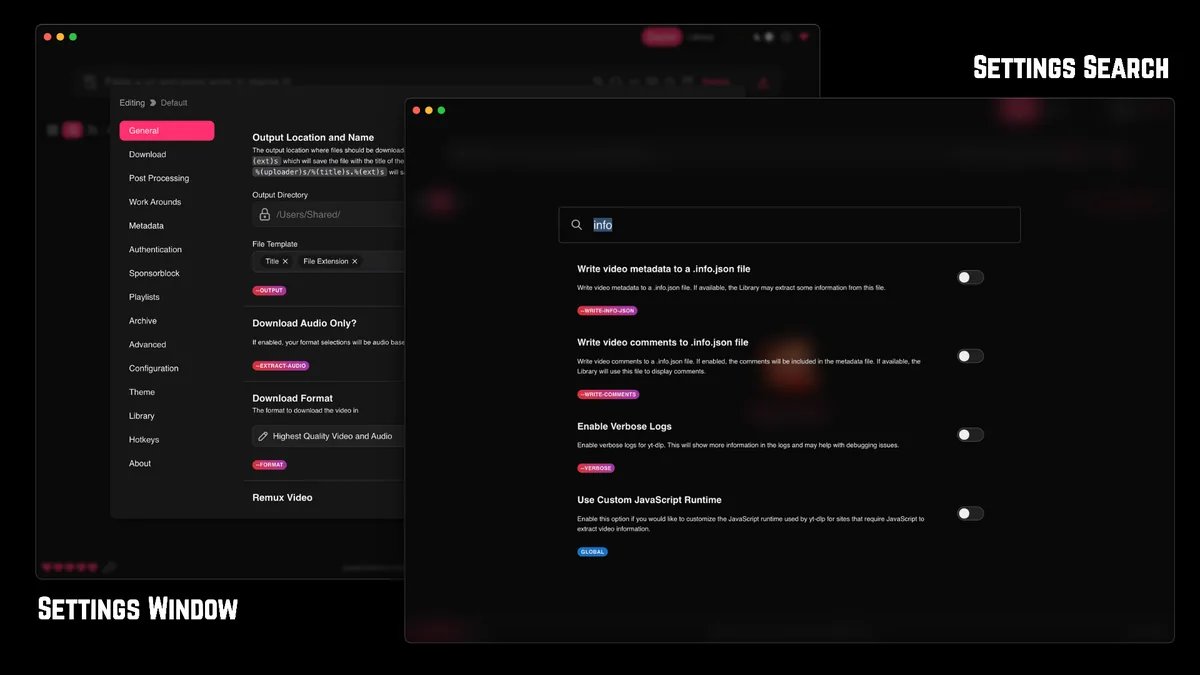
Use the Settings search to locate Download Audio Only or the equivalent audio extraction control. Enable it for the active preset, then select MP3 as the output format. Keep the default naming template for the first test so a complicated path does not hide the finished file.
- Open Settings and search for audio or extract audio.
- Enable Download Audio Only for the preset you will use.
- Select MP3 as the conversion format and choose a sensible quality setting.
- Confirm the output folder and make sure FFmpeg is installed.
- Paste one authorized source URL and start the job.
MP3 conversion cannot add quality that is absent from the source. A very high bitrate mostly increases file size when the original stream is already compressed.
MP3 vs M4A vs Opus vs WAV in Stacher
MP3 is the safest choice for old car stereos, basic music players, presentation software and workflows that expect the extension. Its advantage is compatibility, not superior quality. When the source provides AAC audio inside M4A, keeping that stream may avoid another lossy encode. Opus is efficient and often delivers good quality at a smaller size, but some older hardware does not recognize it.
WAV is uncompressed and much larger. Converting a compressed web stream to WAV does not restore removed frequencies or detail; it only expands the decoded audio into a larger container. WAV can still be useful as an intermediate file for an editor that requires PCM, but it is usually a poor archive choice for ordinary Stacher downloads.
| Format | Best for | Important limitation |
|---|---|---|
| MP3 | Maximum device and software compatibility | Usually requires lossy conversion |
| M4A / AAC | Keeping common source audio without re-encoding | Not every source provides it |
| Opus | Efficient quality and smaller files | Older players may not support it |
| WAV | PCM editing workflow | Very large and cannot restore source quality |
For listening, preserve the source stream when possible. Convert only when the destination device or editing software requires another format.
Choose MP3 quality without wasting space
An MP3 quality setting controls the new encode, not the original stream. Choosing 320 kbps does not turn a lower-bitrate source into studio-quality audio. It can reduce additional conversion loss compared with a very low setting, but it also creates a larger file. For spoken material, a moderate bitrate is often sufficient; music may benefit from a higher setting when MP3 is required.
Avoid repeated conversions. Downloading Opus, converting to MP3, editing the MP3 and exporting another MP3 compounds loss. If editing is required, keep the original download and export once at the end. Add metadata and thumbnail embedding only after a plain audio extraction succeeds.
- Keep the original audio file until the converted result is verified.
- Use a moderate bitrate for speech and a higher setting for music only when needed.
- Do not use WAV merely because the number looks larger or lossless.
- Check that the final file opens, has the expected duration and contains the correct track.
The smallest practical audio option depends on the codec, duration and source. Opus is often more efficient than MP3, but compatibility should decide the final choice.
Fix Stacher MP3 downloads that fail or stop early
If Stacher downloads media but no MP3 appears, inspect the post-processing section of the log. A missing FFmpeg executable, invalid output path, locked destination file or unsupported custom argument can fail after the network transfer has already completed. Try an unmodified audio-only preset and a short public test source before reinstalling the application.
If an Opus result contains only the first ten minutes or another unexpected duration, verify the source duration, available format, disk space and log. A playlist entry, preview stream or interrupted fragment can look like a complete job when only part of the source was available. Retest with another authorized URL to distinguish a source-specific issue from a global configuration problem.
When you only want MP3, first test a simple audio-only preset with one authorized URL. If the media downloads but no MP3 appears, check the FFmpeg path, output permissions and post-processing log before downloading the same file again.
- Update yt-dlp and confirm FFmpeg is detected.
- Remove custom post-processing arguments for one test.
- Use a simple output folder and filename.
- Check available disk space and temporary files.
- Compare the source duration with the final audio duration.
Do not use cookies or account authentication as a generic fix. They are only relevant when you have legitimate access and the source actually requires an authenticated session.
How to download MP3 with Stacher and verify the file
When you download MP3 with Stacher, verify more than the extension. Open the file in the player that matters, check the full duration and listen at the beginning, middle and end. Confirm that the correct source track was selected and that speech or music does not stop where an interrupted fragment or preview ended.
Review the job log to separate source extraction from MP3 conversion. The source may deliver M4A, WebM or Opus first; FFmpeg then creates the MP3 during post-processing. If the transfer succeeds but conversion fails, preserve the original audio file. Fix FFmpeg detection, the output path or the conversion setting instead of downloading the same media repeatedly.
Use consistent filenames before processing a playlist. Include a stable media ID when duplicate titles are possible, and avoid deeply nested folders that can exceed operating-system path limits. Test thumbnail embedding and metadata on one copy because some players interpret cover art, artist fields and chapter data differently.
For archival listening, compare the delivered M4A or Opus file with the MP3 requirement of your devices. Keep the original compressed stream when everything supports it. Download MP3 only when its broader compatibility solves a real playback or handoff problem; a larger MP3 bitrate cannot recover information missing from the source.
- Compare source and final duration before deleting the original stream.
- Keep one plain audio-only preset without metadata or cover-art steps.
- Use MP3 for compatibility and source audio for preservation when possible.
- Test the finished file on the oldest device in the intended workflow.
The reliable way to download MP3 with Stacher is to validate extraction, conversion and playback as three separate checks.
How to download MP3 with Stacher FAQ
Can Stacher download only MP3?
Yes. Enable audio-only extraction and choose MP3 as the output format. FFmpeg is normally required to create the MP3.
What is the best audio-only format in Stacher?
Use M4A or Opus when you can keep the source audio without conversion. Use MP3 when broad compatibility is the priority. The best choice depends on the delivered stream and your player.
Is WAV worth downloading from an online video?
Usually no. WAV is much larger and cannot restore detail removed by the compressed source. It is useful mainly when a PCM editing workflow requires it.
Why did Stacher download WebM or M4A instead of MP3?
That can happen when the preset keeps the original stream rather than running MP3 extraction. Confirm audio-only conversion and FFmpeg settings.
Can I add cover art and metadata?
Stacher and yt-dlp can support metadata and thumbnail-related post-processing, but make a plain audio download work first. Source metadata and image availability vary.
How do I download MP3 with Stacher without video?
Enable Download Audio Only, choose MP3 as the post-processing format, confirm FFmpeg is available and test one authorized URL. Keep the original audio until the converted file has the expected duration and track.
Why can’t I download MP3 audio from Stacher?
The transfer may finish before MP3 conversion starts. Check the FFmpeg installation, output-folder permissions, free disk space and the post-processing log, then retry with a simple audio-only preset.