
What Stacher metadata can and cannot preserve
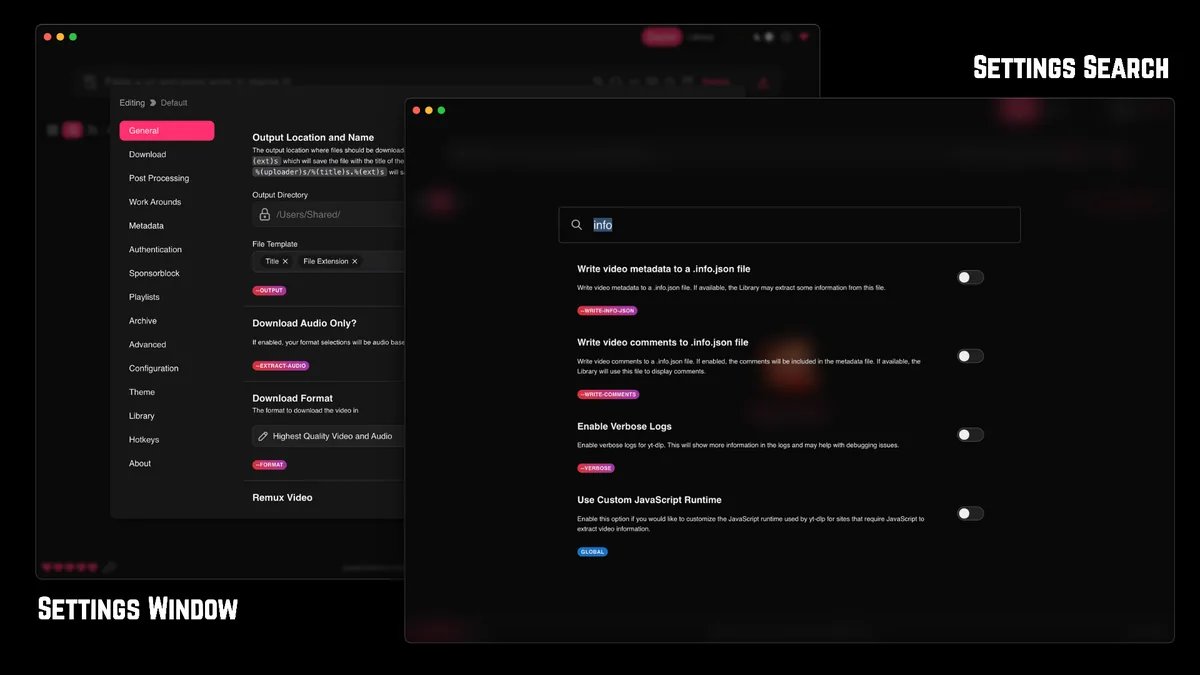
Metadata is information attached to a media file rather than the audio or video signal itself. Depending on the source and selected output, a job may carry a title, uploader or artist, album, release date, track number, playlist position, thumbnail, language and other fields. Stacher gives you a graphical workflow around yt-dlp, while the source extractor and post-processing tools determine which values actually exist and which can be written to the final container.
A setting cannot invent a missing track number or recover a cover image that the source never exposes. It can also be normal for a video container, an audio-only file and a converted MP3 to show different fields in different players. Treat the source metadata as input, the selected format as a constraint and the final player as the place where you verify the result.
| Field or asset | What may supply it | What to check |
|---|---|---|
| Title | Source title or filename template | Whether punctuation and episode numbers survive |
| Artist / uploader | Source page metadata or extractor fields | Whether the player maps uploader to artist |
| Album | Source metadata, playlist context or a custom template | Whether the output format stores an album tag |
| Track number | Source playlist/index fields or metadata parsing | Whether the index is a tag or only part of the filename |
| Cover art | Source thumbnail plus embedding/post-processing | Whether the final player supports embedded artwork |
| Language / chapters | Source tracks and chapter metadata | Whether the container and player expose them |
Metadata does not grant permission to copy or redistribute media. Use Stacher only with content you own, created, received permission to save or may otherwise lawfully download.
A safe metadata-first test workflow
The most reliable way to diagnose a tag problem is to create a small baseline. Do not begin with a long playlist, a private page, a complex filename expression and several custom arguments at the same time. One representative file tells you whether the source, Stacher settings, yt-dlp component, FFmpeg step and player are working before a batch multiplies the same mistake.
Keep the first test boring: one public or otherwise authorized URL, a short local output path, a standard audio or video preset and the managed component. Save the job log until you have opened the final file. If the original download succeeds but the metadata step fails, the log and the remaining temporary files can identify the boundary.
- Update Stacher's managed yt-dlp component when the app offers an update, then restart Stacher before testing.
- Choose one URL whose title, artist or playlist position you can compare with the source page.
- Set a writable local output folder and keep the filename template simple for the first run.
- Download the plain file once, without thumbnail embedding or extra custom arguments, and confirm that the media itself plays.
- Enable the metadata or thumbnail option that matches your goal, then repeat the same URL.
- Open the final file in the target player and inspect title, artist, album, track number, duration and artwork.
- Only after the single-file test passes, add playlist numbering, custom names or batch processing.
If the plain file fails, fix extraction, transfer, permissions or FFmpeg first. Metadata options should not be used to mask a broken download.
Keeping track number, author and album tags
The phrase Stacher track number metadata usually describes a playlist or album-order problem. A visible number in a source title is not always the same thing as a numeric tag inside an MP3 or M4A file. Stacher may preserve the source value, include a playlist index in the filename or leave the field empty when the extractor has no reliable mapping. Decide whether you need sorting in a file browser, sorting in a music player, or both.
For a playlist, keep a stable index or media ID in the filename while testing. That gives you a recovery path even when a player ignores the track tag. Avoid assuming that the playlist position is the official album track number: a playlist can include intros, duplicates, commentary or reordered items. If the source carries an artist name but the player shows an uploader, compare the file in a second metadata-aware application before changing the download preset.
- Use a simple title and playlist-index template before adding dates, uploader names or nested folders.
- Keep the media ID when duplicate titles are possible so a later metadata repair can identify the source.
- Compare artist, album and track number in the final file, not only in Stacher's queue label.
- Do not treat a filename such as 03 - Title as proof that the embedded track tag is 3.
- If order matters, keep the original playlist export or a small text record beside the downloaded files.
| Goal | Safer first choice | Common limitation |
|---|---|---|
| Sort files in a folder | Playlist index plus title in the filename | The index may not be an embedded tag |
| Sort in a music player | Metadata-capable audio format and a verified tag | Players interpret fields differently |
| Preserve creator identity | Check artist/uploader mapping after conversion | Uploader is not always the same as artist |
| Archive a playlist | Keep media ID and original order notes | The online playlist can later change |
When the source does not expose a track number, a filename template can preserve order but cannot turn a guessed number into authoritative album metadata.
Cover art and thumbnail embedding
Cover art normally starts as a source thumbnail. Stacher and yt-dlp can request thumbnail-related post-processing for compatible output workflows, but the result depends on the source image, the chosen container, FFmpeg availability and the player used for inspection. A thumbnail visible on the source page can still be absent from a converted file, reduced to a separate image or ignored by a player that does not read embedded artwork.
Test artwork after plain audio extraction works. If the file has the expected duration and tags but no cover, inspect the post-processing log and confirm FFmpeg is available. Do not repeatedly re-download the same media while changing several settings; keep the working plain file, add one artwork option, and compare the new result.
- Check that the source exposes a thumbnail and that the thumbnail URL is not blocked or missing.
- Use an output format and player that support embedded artwork when the cover must travel with the file.
- Keep a copy of the plain audio file until the tagged result has been verified.
- If a player shows stale artwork, clear its library cache or inspect the file in another metadata viewer.
- Do not call a file broken because a video player ignores audio cover-art tags.
Cover art is a convenience field, not proof that the source audio or video is complete. Verify duration and playback separately.
Why metadata is missing or looks wrong
Missing tags have several possible owners. The source may expose only a title; the extractor may not map a field to the selected container; a conversion step may drop tags; FFmpeg may be unavailable; the filename may contain a value that was never embedded; or the player may display a different field than the one you checked. Reinstalling Stacher is rarely the best first test.
Start by comparing the plain download with the processed result. If both files lack the field, the source or extractor is the likely boundary. If the plain file has the field but the converted file loses it, inspect FFmpeg and the post-processing stage. If another player shows the expected value, the original application may have a cache or mapping limitation.
For the specific question “how do I keep the author name after downloading MP3 with Stacher?”, check whether the source calls the field uploader, artist, channel or creator. Those labels may be semantically close but are not guaranteed to be written to the same tag. Preserve the source URL and media ID so you can compare the result without guessing which item was processed.
| Symptom | Likely boundary | First diagnostic |
|---|---|---|
| Title exists but artist is blank | Source field mapping | Compare the source page labels with the final tags |
| Track number appears only in the filename | Template versus embedded tag | Inspect the file in a metadata viewer |
| Artwork is missing after MP3 conversion | Thumbnail or FFmpeg post-processing | Read the final post-processing log and test one file |
| Tags differ between players | Player mapping or cache | Open the file in a second metadata-aware player |
| Nothing is written after transfer | FFmpeg, permissions or locked output | Check the output path, disk space and FFmpeg error |
Do not share account cookies, private URLs or sensitive logs while asking for help. Remove identifiers before posting a diagnostic excerpt.
Format and platform notes
Metadata behavior is not identical across MP3, M4A, Opus, WebM and video containers. A format may preserve a source field but expose it under a different tag name. MP3 is often chosen for broad playback compatibility, while M4A or Opus can avoid an extra lossy audio conversion when the target player supports the delivered stream. The best choice is the format your next application actually reads.
On Windows, macOS and Linux, the output folder and the managed yt-dlp path are separate settings. A protected folder, long path, cloud-sync conflict or security tool can interrupt the final write even when the source transfer succeeded. Use a short local folder for the baseline test, then move the verified file or expand the naming scheme later.
- Use MP3 when compatibility with older players or devices is the real requirement.
- Prefer M4A or Opus when the target workflow accepts the original compressed audio.
- Keep FFmpeg current when merging, conversion, thumbnail embedding or remuxing is required.
- Match the Stacher build to Windows x64, macOS Apple silicon/Intel or Debian amd64 before troubleshooting settings.
- Check the final destination path separately from the yt-dlp executable path.
The current verified Stacher installer on this site is 7.1.12 as checked on August 22, 2026. yt-dlp and FFmpeg have separate release cycles.
Verify one file before running a playlist
A metadata workflow is ready for a batch only when one representative file passes the checks that matter to you. Open it from the final output path, confirm the duration and the expected track, and inspect tags in the player or editor where the collection will live. Then test one more item with a different title or source shape; a single success can hide an item-specific missing thumbnail or incomplete source field.
For a large playlist, keep the filename stable enough to identify each source and keep the original playlist order somewhere outside the player database. If a batch produces mixed results, stop adding options. Separate completed files, failed logs and temporary fragments, then compare one good item and one bad item by source, format, metadata and final post-processing stage.
- Open the final file from the exact output path shown in the job log.
- Check duration, playback, title, artist/uploader, album, track number and cover art.
- Confirm that a filename index and an embedded track tag are not being confused.
- Test one second item with a different source title or playlist position.
- Record the working preset, format, FFmpeg state and filename template before starting the full batch.
If a processed file is incomplete, preserve the plain download and log before retrying. That evidence is more useful than deleting every intermediate file.
Stacher metadata FAQ
How do I keep the track number in Stacher?
Test one playlist item first, keep a stable playlist index in the filename and inspect the embedded track tag in the final player. A filename number and a real metadata field are separate; the source must expose a reliable index for Stacher or yt-dlp to preserve it.
How do I keep the author name after downloading MP3 with Stacher?
Check whether the source calls the value artist, uploader, channel or creator, then compare the final tags after a plain audio test and an optional conversion. Different players map those fields differently, so verify the file in the application where you will organize the collection.
Can Stacher save cover art and metadata?
It can request metadata and thumbnail-related post-processing in compatible workflows, but the source, output format and FFmpeg step all matter. Download one plain file successfully, enable one artwork option, and inspect the final file instead of assuming a source thumbnail will always be embedded.
Why is the track number in the filename but not in the music player?
The filename template may contain the playlist index while the embedded audio tag is empty. Inspect the file with a metadata-aware player or editor and keep the filename index as a fallback when the source does not expose an authoritative track field.
Why did cover art disappear after converting to MP3?
The thumbnail may not have been available, FFmpeg may have failed during post-processing, or the player may ignore the embedded artwork. Read the final log, confirm FFmpeg and test the converted file in another metadata-aware application.
Do I need FFmpeg for Stacher metadata?
Not for every plain download, but FFmpeg is commonly involved when Stacher merges streams, converts audio, remuxes a container or embeds thumbnail data. If the media transfers but tags or artwork fail afterward, inspect the FFmpeg path and post-processing log.
Should I run metadata settings on a whole playlist immediately?
No. First verify one plain file and one processed file, then test a second item with a different title or playlist position. This makes it easier to separate a source-specific missing field from a global setting or FFmpeg problem.