
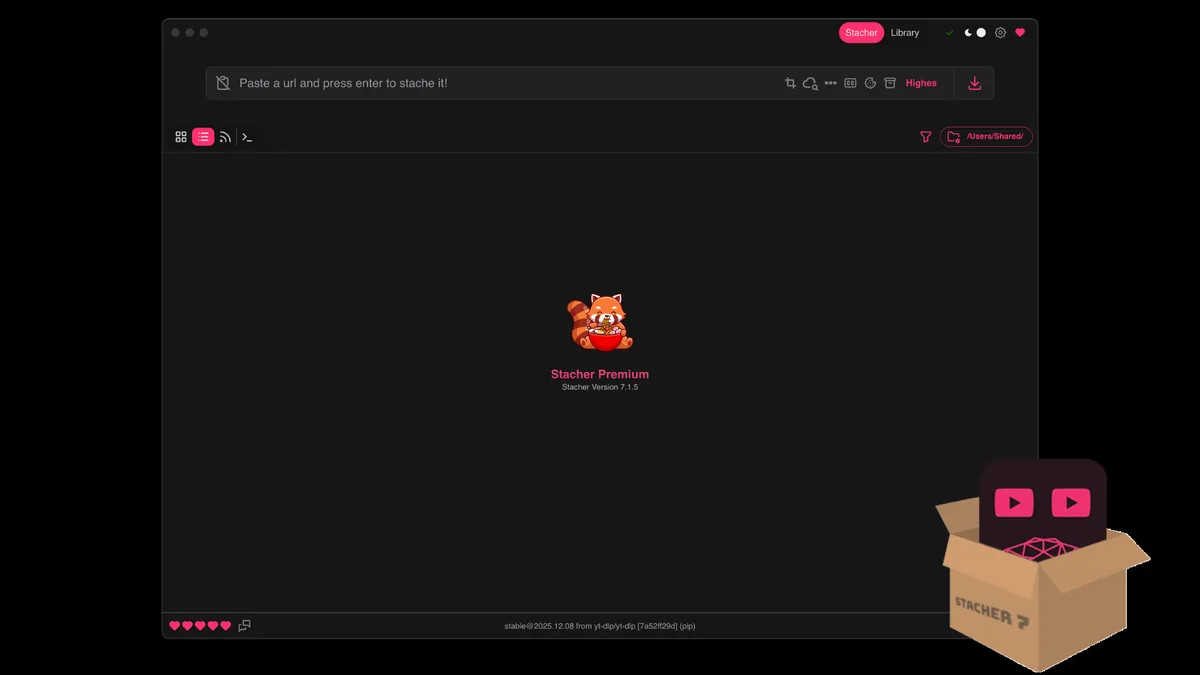
Prepare a Stacher playlist download
A playlist multiplies every configuration mistake. An incorrect audio language, unavailable subtitle track or incompatible format can fail on dozens of entries. Copy one item from the playlist and complete it first using the exact preset you plan to use for the batch.
Estimate storage with the selected resolution and expected item count. Highest-quality downloads may need separate video, audio and merged temporary files, so free space should exceed the final total. Write to a local drive when possible and move the completed folder after the job.
- Update Stacher's yt-dlp component.
- Test one representative item with the final format and subtitle settings.
- Choose a playlist-aware output folder and naming template.
- Review archive and duplicate behavior.
- Start with a small playlist range before running the full list.
Only download playlist items you own or are authorized to save. A playlist can contain mixed ownership and access conditions.
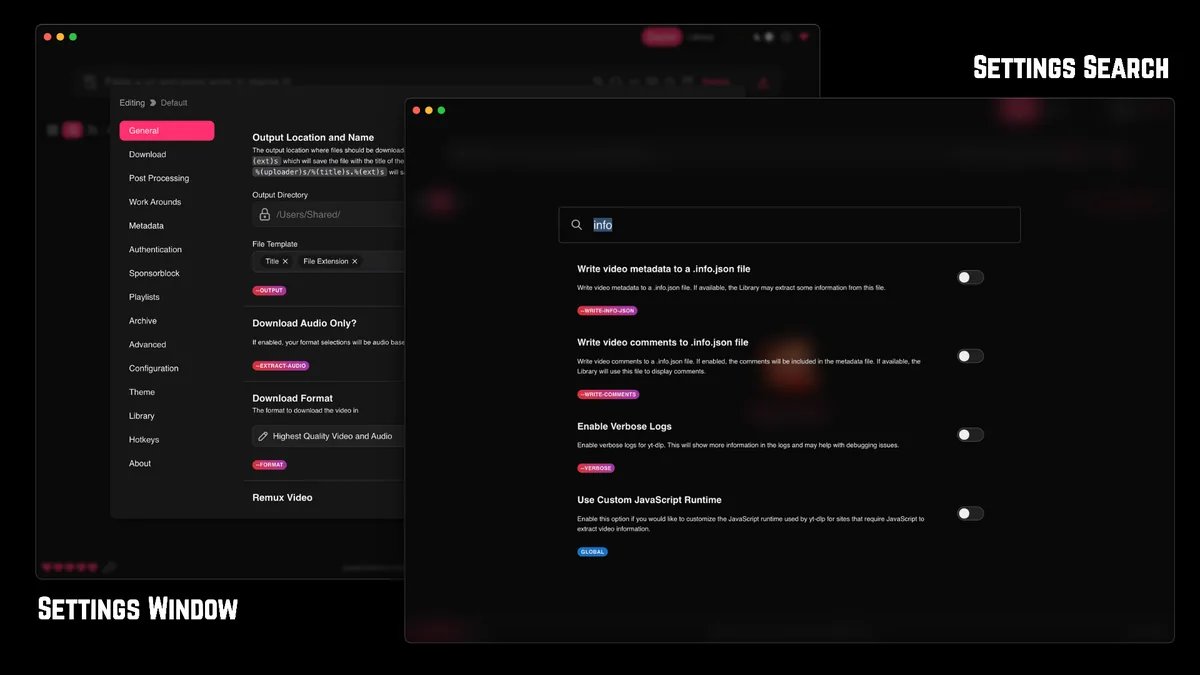
Name and organize playlist files
A title-only template is readable but can collide when two entries share a title. Adding playlist index preserves order, while adding a media ID gives each item a stable unique token. Extremely long uploader, playlist and title combinations can exceed filesystem path limits.
Choose whether each playlist should have its own folder. This helps large collections but can create deep paths when combined with channel and date folders. Test the exact output on your operating system before leaving a batch unattended.
| Template element | Benefit | Risk |
|---|---|---|
| Playlist index | Preserves intended order | Index can change when a playlist is edited |
| Title | Human-readable filename | Titles can collide or be very long |
| Media ID | Stable uniqueness | Less readable by itself |
| Uploader or playlist | Groups related content | Creates longer nested paths |
Keep the original media ID somewhere in the name or archive when reliable duplicate detection matters.
Use the download archive without confusing skipped items
A download archive records media identifiers and lets yt-dlp skip entries already processed. It is useful for channels and regularly updated playlists. It does not inspect the quality or completeness of every file on disk; it trusts the recorded identifier.
If Stacher says an item was already downloaded, check the archive setting and file. Removing or changing the archive can make a playlist download again. Keeping multiple presets with different archives may be intentional when you need separate audio and video collections, but document that choice.
- Keep the archive file with the related download collection.
- Back it up before editing or resetting it.
- Do not assume renaming the output changes the archive ID.
- Use separate archives only for clearly separate workflows.
- Verify skipped files still exist before trusting a long unattended run.
An archive prevents duplicate media IDs; it is not a full library database or file-integrity checker.
Handle partial failures and repeated downloads
A playlist may contain deleted, private, region-limited or format-inconsistent entries. One failure should be reviewed without assuming the entire queue is broken. Record the failed item URL and log, then confirm whether Stacher continues with later entries according to the active settings.
Reduce concurrency when jobs compete for bandwidth, disk or FFmpeg. If every item repeatedly redownloads, verify that the archive path is persistent and writable. If only renamed items appear again, compare their source identifiers rather than filenames.
When a long run finishes, compare the expected playlist count with completed files, skipped archive entries and logged failures. A simple total prevents a visually full folder from hiding missing entries. Preserve the log until every gap is explained as unavailable, unauthorized, intentionally skipped or ready for a legitimate retry.
For a recurring channel or playlist, reuse the tested folder, template and archive instead of creating a new configuration each time. Review the current source list before every run because removed, reordered and newly private entries can change the result even when Stacher settings are identical.
If you need both video and audio-only collections, use clearly named presets and separate output folders. Separate archive files may be appropriate because each workflow produces a different deliverable, but keep them documented so a future run does not unexpectedly skip or repeat material.
- Test the failed item as a single URL.
- Check whether the item still exists and is authorized for access.
- Review subtitle and audio-language consistency across the playlist.
- Lower simultaneous jobs when merges overlap.
- Keep failed-item logs instead of restarting the full list blindly.
A batch is easier to resume when naming and archive behavior were tested before the first full run.
Audit and resume a Stacher playlist download
Before resuming a Stacher playlist download, preserve the archive file, job log and current naming template. Count completed output files, but do not assume that count equals completed media IDs. Extra thumbnails, subtitle files and temporary streams can make a folder count misleading, while two entries with the same title can overwrite or rename unexpectedly.
Compare four groups: completed files, identifiers recorded in the archive, entries reported as skipped and entries with errors. Test each unexplained failure as a single URL with the same preset. If it works alone, queue pressure, disk space or overlapping FFmpeg jobs may have affected the batch. If it still fails, review that item's access and format availability.
Resume with the original archive and output folder so already recorded identifiers remain skipped. Do not delete the archive simply because one output file is missing; first determine whether the file was moved, renamed, incomplete or intentionally removed. Back up the archive before any manual edit and document every identifier you remove for a legitimate retry.
After the resumed Stacher playlist download ends, compare the current playlist with the final audit again. A playlist can change during a long run, so record the check time and expected range. Keep unavailable or unauthorized entries in a separate exception list rather than repeatedly restarting the complete queue.
- Back up the archive before changing it.
- Compare media IDs instead of filenames alone.
- Retry unexplained failures as individual URLs.
- Separate skipped, unavailable and failed entries in the final count.
A Stacher playlist download is complete when every expected item is completed, deliberately skipped or explained by a recorded source condition.
Stacher playlist download FAQ
Can Stacher download playlists and channels?
Stacher can pass playlist and channel-style URLs to yt-dlp when the source is supported. Availability and authorization still apply to every entry.
How do I download a batch of links in Stacher?
Use the application's batch or queue input flow, but first test the same preset on one URL. Keep concurrency conservative and use a predictable naming template.
Why does Stacher keep redownloading playlist items?
The archive may be disabled, moved, unwritable or different between presets. Check media IDs and archive configuration rather than filenames alone.
Can I download one video at a time from a playlist?
Yes. Use an individual item URL or a playlist range when supported. This is useful for testing format and subtitles before a full run.
What happens when one playlist item is unavailable?
The outcome depends on active error-handling settings. Record the failed item, test it separately and verify whether later queue entries continue.