
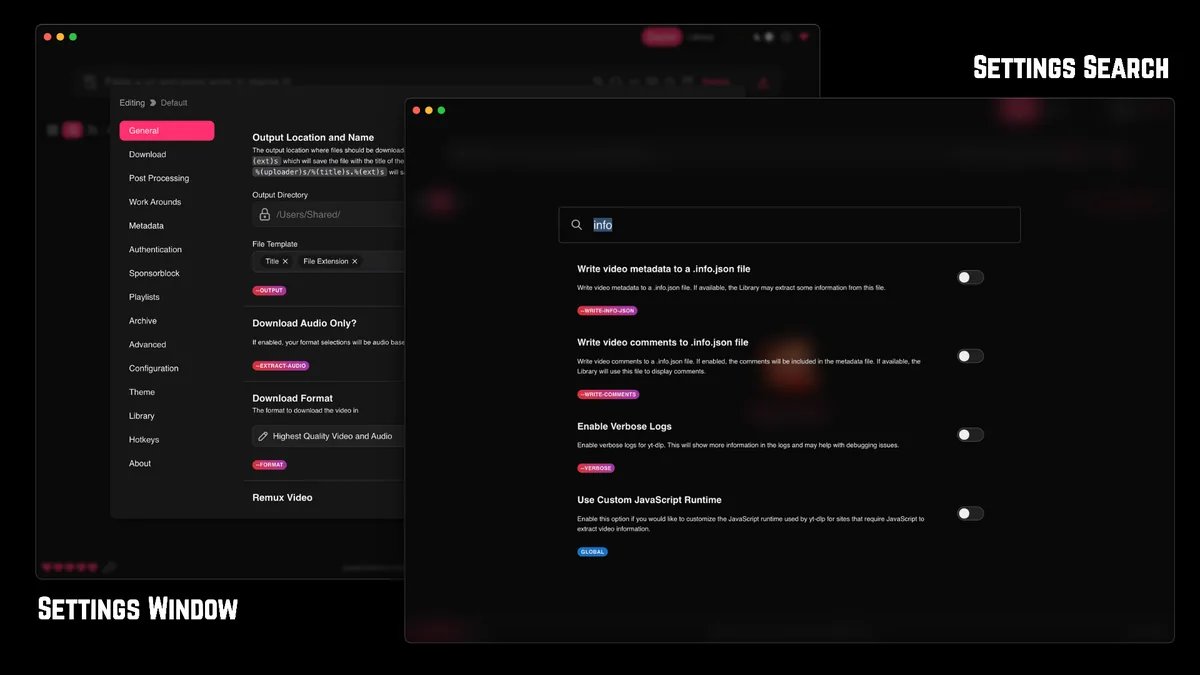
How Stacher uses yt-dlp
Stacher is a desktop interface rather than a separate website extractor. It collects the URL, preset, destination, authentication choice and post-processing settings, then builds a yt-dlp job. yt-dlp interprets the supported site, discovers available video and audio formats, downloads the selected streams and hands post-processing work to tools such as FFmpeg when merging or conversion is required.
This division matters during troubleshooting. A missing button, queue problem or saved-setting issue usually belongs to Stacher. An unsupported URL, extractor warning, HTTP response, format list or signature error usually comes from yt-dlp or the source site. A merge failure, missing codec or audio conversion error often points to FFmpeg. Read the first specific error in the detailed log instead of treating every failure as the same problem.
| Component | Main responsibility | Typical evidence |
|---|---|---|
| Stacher | Interface, queue, presets, output folder and managed component controls | Saved settings, queue state, selected path or branch |
| yt-dlp | Site extractors, format discovery, media requests and download logic | Extractor name, yt-dlp version, HTTP or format messages |
| FFmpeg | Merging separate streams, remuxing, conversion and embedding | Post-processing, codec, merge or executable errors |
Only download media you own or are authorized to save. Updating yt-dlp does not change the source site's terms or grant access to private, paid, removed or restricted content.
Managed yt-dlp versus a custom path
For most users, Stacher's managed yt-dlp is the safest choice. Stacher knows where that component is stored, can update it through its own controls and can keep the interface and downloader behavior aligned. A custom path is useful only when you deliberately maintain yt-dlp yourself, test a specific build, or need an organizational deployment that controls executable locations.
The most common custom-path mistake is assuming an update changed the active executable. A terminal command may update one copy while Stacher continues using another file. The detailed log should identify the version and path used for the actual job. If that path is unexpected, remove the custom override or update the exact binary Stacher invokes.
- Use managed yt-dlp when you want the simplest update and rollback path.
- Use a custom path only when you can identify, update and test that exact executable.
- Do not keep several similarly named binaries in a download folder and guess which one is active.
- After any path change, restart Stacher and confirm the active version in a fresh detailed log.
| Choice | Best for | Main risk |
|---|---|---|
| Managed component | Normal Windows, macOS and Linux installations | A failed or interrupted in-app update may require one retry |
| Custom executable | Advanced testing, controlled deployments or a documented workaround | Stale path, wrong architecture, permissions or updating a different copy |
| System package | Linux users following a distribution or administrator policy | Repository versions may lag current extractor fixes |
Changing the path and branch at the same time makes diagnosis harder. Change one variable, restart, and retest.
How to update yt-dlp in Stacher safely
Update when the log shows an older yt-dlp build, Stacher reports an available component update, or a previously supported site starts returning an extractor or signature error that current yt-dlp releases address. Do not update repeatedly for disk-space, output-folder, permission or FFmpeg errors; those symptoms need a different fix.
Use one controlled test after the update. Choose a public URL that you are allowed to save, keep the default format, disable optional cookies and custom arguments, and write to a simple local folder. A clean test separates the updater result from authentication, conversion and storage variables.
- Finish or stop active downloads so no yt-dlp process is using the component.
- Open Stacher settings and search for yt-dlp, update, branch or custom path.
- Record the current branch and custom-path state before changing anything.
- Run Stacher's yt-dlp update control and wait for a success or failure message.
- Restart Stacher so a new job cannot reuse an old process or cached path.
- Test one permitted public URL with default settings and a local output folder.
- Open the detailed log and confirm the new yt-dlp version and expected executable path.
- Re-enable cookies, special formats or custom arguments one at a time only after the basic test succeeds.
If the update control fails, keep the exact message. Network filtering, antivirus quarantine, a locked executable or folder permissions can block replacement even when normal browsing works.
Stable, nightly or master: which yt-dlp branch should Stacher use?
Stable is the right default because it receives packaged releases intended for broad use. Nightly changes more frequently and can include a recent extractor repair before the next stable release. Master follows current project development and is generally a diagnostic option rather than a permanent choice for ordinary Stacher use.
A branch switch should answer a specific question: does a newer documented yt-dlp build fix the exact extractor error in the log? If yes, record the stable version, switch to nightly, update, restart and retest the same URL. If the error remains or a new regression appears, return to stable. Do not use branch switching to bypass account, region, subscription or permission rules.
| Branch | When to use it | When to leave it |
|---|---|---|
| Stable | Normal daily use and first-line troubleshooting | Only for a documented test of a newer fix |
| Nightly | A recent site change has a known fix not yet in stable | After stable includes the fix or if nightly introduces a regression |
| Master | Short advanced diagnosis when project guidance specifically requests it | Immediately after the test; avoid treating it as the default |
Record branch and version together. Saying only “latest” is not enough evidence when comparing results.
Use the detailed log to fix Stacher yt-dlp failures
The detailed log is the fastest way to distinguish an outdated extractor from a wrong path or unrelated post-processing failure. Capture the first meaningful error, the yt-dlp version, the extractor or site name, the output location and whether a custom executable, cookies, proxy or custom arguments are active. Remove private URLs, account identifiers and cookie data before sharing a log.
Do not paste random command-line flags into Stacher because a forum post used them for another site. Custom arguments can override presets, paths and format choices, and an obsolete workaround can become the new cause after yt-dlp is updated. Return to a minimal test, then add only the option that solves the verified problem.
| Log symptom | Likely owner | First action |
|---|---|---|
| Unsupported URL or extractor error | yt-dlp/site extractor | Update stable; test nightly only if a current fix is documented |
| Old version remains after update | Path or multiple installations | Verify the executable path and remove an unintended custom override |
| Permission denied replacing executable | Operating system/security tool | Close active jobs, check folder permissions and review quarantine events |
| Requested format is not available | Format selection/source | Return to default selection and inspect available formats |
| FFmpeg not found or merge failed | Post-processing | Install or locate FFmpeg; do not keep updating yt-dlp |
| Sign in, cookies or account required | Authentication/source policy | Use an authorized browser session only; follow the cookies guide |
| Timeout, DNS, certificate or connection reset | Network path | Test another permitted URL and inspect DNS, firewall, proxy and connection stability |
The first specific error is usually more useful than the final generic “download failed” line.
Windows, macOS and Linux path notes
On Windows, security software can quarantine a newly replaced executable or block writing inside protected folders. Keep Stacher installed in its normal location, avoid running different copies from temporary download folders, and review protection history if the version disappears after an update. Running as administrator should be a short diagnostic, not the permanent default.
On macOS, choose the Stacher build that matches Apple silicon or Intel and be alert to quarantine or permission prompts after replacing an executable. On Linux, a distribution package, Python environment and Stacher-managed component may all provide different yt-dlp copies. The job log—not a terminal assumption—should decide which one Stacher is using.
The output folder is separate from the yt-dlp executable path. Changing where videos are saved does not update yt-dlp, and changing the custom executable does not move completed downloads. If you cannot find a file, read the final destination in the log and check Stacher's output-folder setting.
- Match the installer and custom binary to the operating system and CPU architecture.
- Use a short local output path while diagnosing permissions or path parsing.
- Avoid cloud-synced, network-mounted or removable folders until the basic test succeeds.
- Keep one known-good configuration note: Stacher version, yt-dlp version, branch and active path.
As of August 22, 2026, the verified Stacher release on this site is 7.1.12. The yt-dlp component has its own version and update cadence.
Stacher yt-dlp FAQ
Does Stacher include yt-dlp?
Stacher manages a yt-dlp component for normal use and can also be configured to use a custom executable. Check the detailed log and path setting to confirm which copy a job actually used.
How do I update yt-dlp in Stacher?
Stop active jobs, open settings, find the yt-dlp update control, record the current branch and path, run the update, restart Stacher, test one permitted public URL and confirm the new version in the detailed log.
Should I use yt-dlp nightly in Stacher?
Keep stable as the default. Use nightly temporarily when a current yt-dlp fix for the exact extractor error is documented, then return to stable after the fix is included or if nightly causes a regression.
Why does Stacher still show an old yt-dlp version after updating?
Stacher may be using a custom or different executable from the one you updated. Confirm the path in settings and the executable/version reported by a fresh job log, then update or remove the unintended override.
Where does Stacher save downloaded videos?
Stacher saves files in the selected output folder, which is independent from the yt-dlp executable path. The final destination appears in the job log; check the output-folder control if the file is not where expected.
Will updating yt-dlp fix every Stacher download error?
No. Updates can fix extractor changes, but they do not solve missing FFmpeg, disk space, output permissions, network failures, unavailable formats or account and content-access restrictions.