
Understanding Subtitles and Captions in Stacher
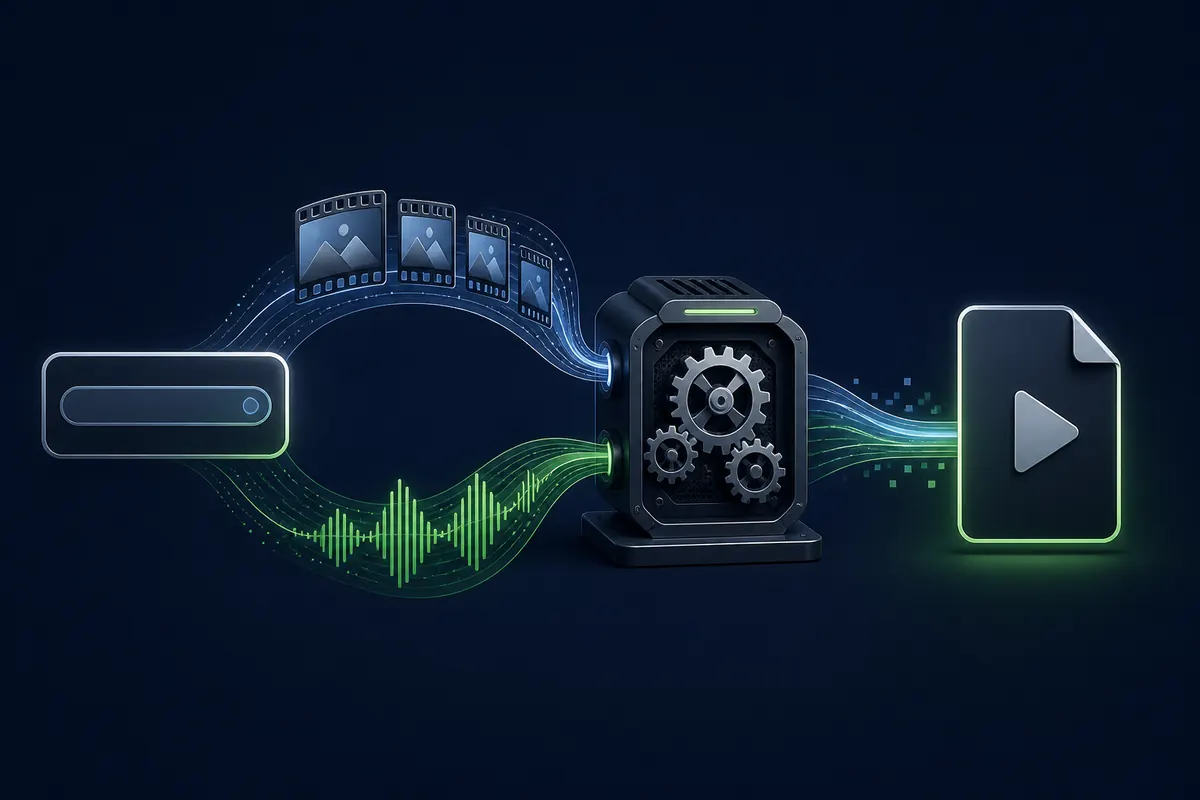
Stacher uses yt-dlp to inspect, extract, and assemble media streams from video platforms. When a publisher uploads manual subtitles or a platform generates automatic captions, these tracks are exposed through distinct metadata tags. Stacher extracts these tracks cleanly without re-encoding video content.
Manual subtitles are provided by creators or professional translators and usually offer superior timing and phrasing. Automatic captions are created by machine speech-recognition algorithms, meaning they may include minor transcription errors. Stacher can download either or both types depending on your configuration preferences.
Stacher lets you choose between two delivery methods: external sidecar text files or embedded container streams. External subtitle files, such as SubRip (.srt) or WebVTT (.vtt), sit right next to your downloaded video file. Embedded subtitles are muxed directly into MP4 or MKV video containers using FFmpeg, creating a single self-contained media file.
- Manual Subtitles: Text tracks created by creators or verified contributors.
- Automatic Captions: Platform-generated speech-to-text transcripts provided when manual captions are absent.
- External Sidecars: Lightweight .srt or .vtt files saved alongside the video for universal media player compatibility.
- Embedded Tracks: Subtitles muxed directly into MP4 or MKV containers without altering video quality.
Stacher only downloads subtitle tracks that are provided by the source host. If a video platform does not host subtitles or automatic captions, Stacher cannot synthesize text tracks.
How to Download Subtitles with Stacher Step by Step
Downloading subtitles in Stacher is straightforward once the proper toggle switches are enabled in the application settings. Stacher saves your preferences globally across sessions, so you only configure your preferred languages and format once.
- Launch Stacher and verify that your managed yt-dlp and FFmpeg dependencies are up to date.
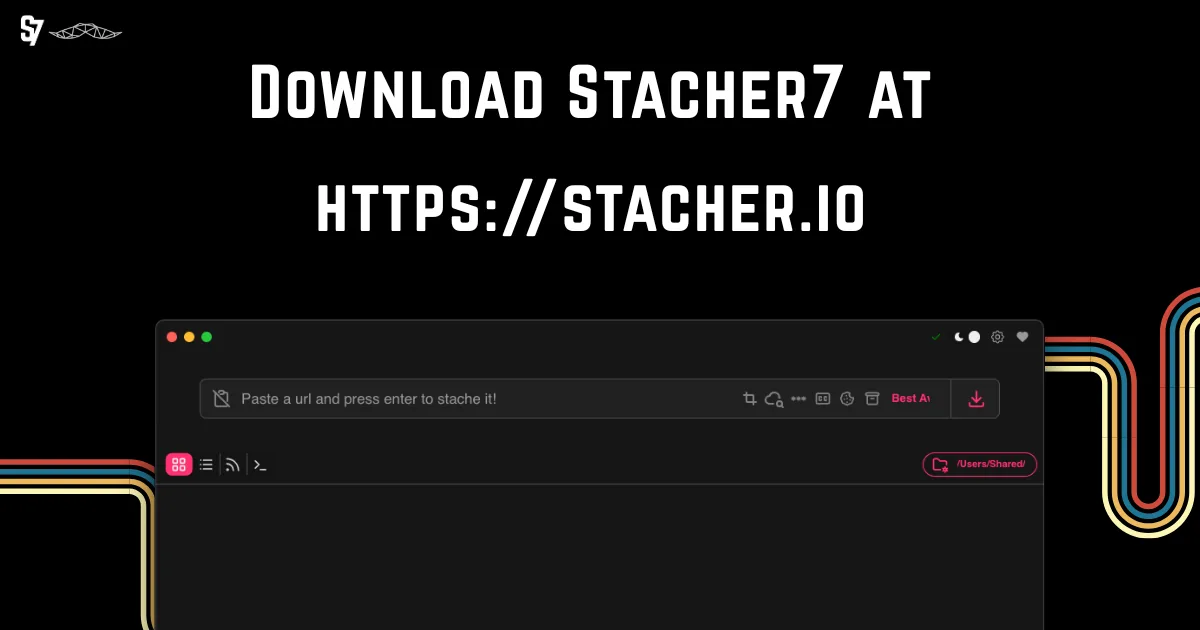
- Click the gear icon in the top-right corner to open the Settings panel.
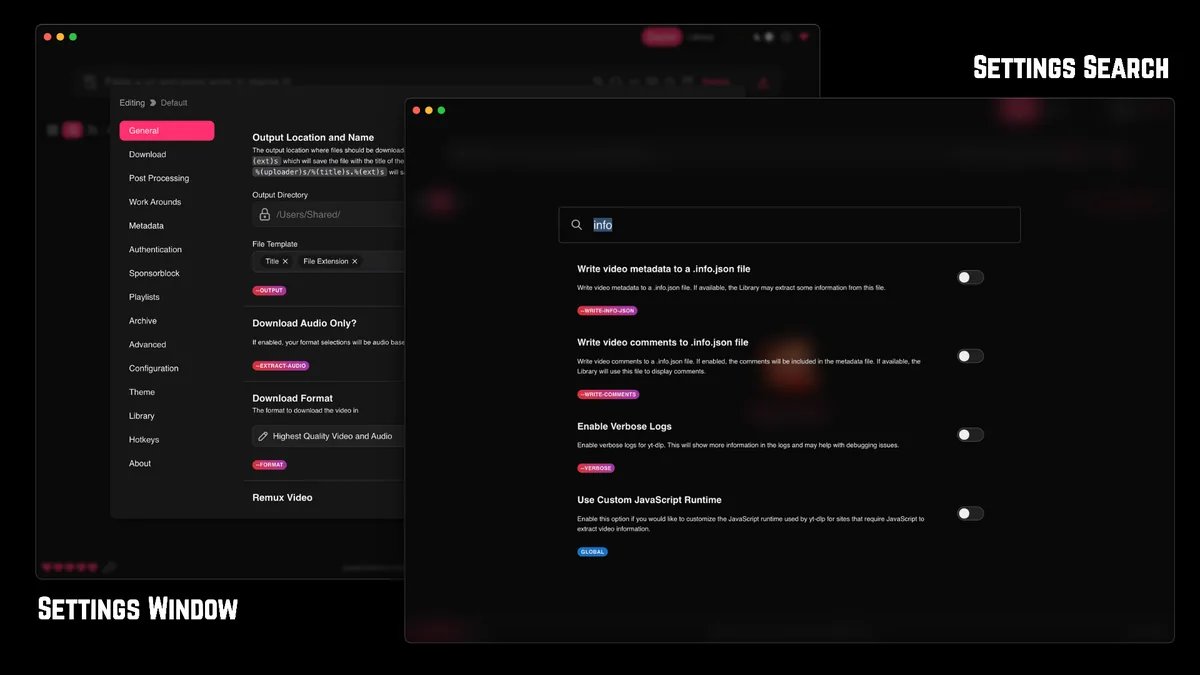
- Scroll down to Subtitles, or use the Settings Search bar to search for 'subtitles'.
- Toggle on 'Download Subtitles' and check 'Include Auto-Generated Subtitles' if needed.
- Specify your preferred subtitle language codes in the language text field (e.g., 'en' for English, 'es' for Spanish, or 'all').
- Select your preferred subtitle format; SRT is recommended for desktop and TV playback, while VTT is ideal for web players.
- If you prefer a single unified video file, enable 'Embed Subtitles' and ensure FFmpeg is configured.
- Return to the main screen, paste your video URL, select your quality preset, and click Download.
- Once the download finishes, open your output folder to verify the subtitle file or embedded track.
Configuring Subtitle Language Tags
Language tags tell yt-dlp which subtitle streams to capture. Stacher uses standard ISO language codes. You can specify a single language like 'en' or comma-separate multiple languages like 'en,es,fr,de'. Specifying 'all' downloads every available subtitle file.
- Single Language: Use 'en' for English, 'es' for Spanish, 'fr' for French, 'de' for German, or 'ja' for Japanese.
- Multi-Language List: Use 'en,es,pt' to fetch English, Spanish, and Portuguese tracks simultaneously.
- All Available Tracks: Enter 'all' to ensure no subtitle track is left behind.
Embedding vs External Sidecar Subtitle Files
Deciding whether to embed subtitles or keep them as external sidecars depends on your playback setup. External SRT and VTT files offer maximum flexibility for video editors and transcribers. Embedded subtitles are ideal for home theater systems, Plex servers, and mobile playback.
- Sidecar (.srt/.vtt): Easy to edit, search, and translate; compatible with all legacy video players.
- Embedded (MKV/MP4): Keeps your folders tidy with one single file; allows switching tracks dynamically in media players.
When embedding subtitles into an MP4 container, ensure your player supports mov_text subtitles. Switching Stacher's container preference to MKV provides superior subtitle compatibility.
Subtitle Formats: SRT vs VTT vs ASS vs Embedded
Stacher and yt-dlp support several subtitle formats. Review the comparison table below to determine which subtitle format best matches your playback and post-processing needs.
| Subtitle Format | File Extension | Styling & Positioning | Primary Compatibility | Recommended Usage |
|---|---|---|---|---|
| SubRip | .srt | Basic (plain text with timestamps) | Universal (VLC, Windows Media Player, QuickTime, TVs) | Best general-purpose choice for offline viewing and translation |
| WebVTT | .vtt | Moderate (CSS styling and positioning) | Web browsers, HTML5 video players, modern media hubs | Ideal for web distribution and online caption workflows |
| Advanced SubStation Alpha | .ass / .ssa | Advanced (rich fonts, colors, karaoke effects, margins) | Anime players, VLC, mpv, Aegisub editing software | Best for stylised subtitles and complex timed graphics |
| Embedded Soft Subs | Inside .mkv / .mp4 | Depends on stream type (SRT, VTT, or ASS stream) | Modern media players (VLC, mpv, Plex, Jellyfin, Apple TV) | Best for clean single-file libraries and multi-track switching |
If your video source uses WebVTT by default, Stacher can automatically convert it to SubRip (.srt) using FFmpeg if you select SRT in your settings.
Troubleshooting Common Subtitle Download Issues
While Stacher makes downloading subtitles simple, occasional errors can occur. Here is how to diagnose and resolve the most frequent subtitle download problems.
- Subtitles Are Not Downloading: Verify that the source video actually has captions available. If captions are auto-generated, make sure 'Include Auto-Generated Subtitles' is checked in Stacher settings.
- Embedded Subtitles Missing in Video Player: If you selected 'Embed Subtitles' but your player shows no subtitle options, verify that FFmpeg is properly installed. Without FFmpeg, Stacher cannot remux subtitle tracks into the video file.
- Wrong Subtitle Language Captured: Check your language filter tags in Settings. Ensure you used the standard ISO code (such as 'en' instead of 'English').
- Subtitles Out of Sync: Timestamp drift can occur when downloading variable frame rate streams. Downloading an external SRT file to adjust delay in your player resolves this issue.
- Error 403 or Token Expired: When downloading subtitles from age-restricted or membership videos, export your browser cookies into Stacher.
Verifying FFmpeg for Subtitle Remuxing
FFmpeg is the engine responsible for converting and embedding subtitle tracks into video files. If your settings have 'Embed Subtitles' enabled but the output video lacks subtitle tracks, Stacher likely cannot locate a working FFmpeg binary.
Open Stacher Settings, check the FFmpeg status indicator, and click 'Install FFmpeg' or configure your custom FFmpeg executable path.
- Windows: Ensure ffmpeg.exe is accessible via Stacher's internal component installer or your system PATH.
- macOS: Use Homebrew (brew install ffmpeg) or Stacher's automated component download.
- Linux: Install ffmpeg via your native package manager (sudo apt install ffmpeg).
Always check the Stacher Console Log if a download fails. The raw yt-dlp output will explicitly state whether subtitles were detected, downloaded, or skipped.
Best Practices for Organizing Subtitled Media Libraries
Maintaining an organized media library with accurate subtitle tracks requires consistent naming conventions and storage hygiene. Follow these established best practices to keep your video collection clean and compatible with all playback hardware.
- Consistent File Naming: Ensure the subtitle file has the exact same base name as the video file (e.g., 'Documentary.mp4' and 'Documentary.en.srt').
- Language Code Identifiers: Insert the ISO language code before the subtitle extension (e.g., 'movie.en.srt') so media centers label audio and subtitle tracks correctly.
- Dedicated Folders: Use Stacher's download path preferences to route movies, playlists, and tutorials into dedicated subdirectories.
- Prefer UTF-8 Encoding: Stacher saves subtitle files in UTF-8 encoding by default, preventing garbled non-Latin characters and accents.
External SRT files with proper language tags are universally recognized by smart TVs, mobile players, and home streaming apps without requiring complex transcoding.
Frequently Asked Questions About Downloading Subtitles with Stacher
How do I download subtitles with Stacher?
To download subtitles with Stacher, open Settings, scroll down to Subtitles, toggle on 'Download Subtitles', set your desired language codes (e.g., 'en' for English), choose whether to include auto-generated captions, select your preferred format (SRT or VTT), and start your download.
Can Stacher download auto-generated closed captions?
Yes. Stacher supports auto-generated closed captions. Simply check the 'Include Auto-Generated Subtitles' option in the Subtitles settings panel so yt-dlp fetches automatic speech-recognition caption tracks when manual subtitles are unavailable.
How do I embed subtitles directly into the video file in Stacher?
In Stacher Settings under the Subtitles section, turn on the 'Embed Subtitles' toggle switch. Ensure that FFmpeg is installed and recognized by Stacher; the application will automatically remux the downloaded subtitle stream directly into your MP4 or MKV container.
What is the difference between SRT and VTT subtitles in Stacher?
SRT (SubRip) is a universally compatible plain-text format supported by virtually all video players and hardware devices. VTT (WebVTT) is an HTML5-oriented web format that supports advanced CSS styling, positioning, and cues. For offline desktop and TV playback, SRT is generally recommended.
Why are subtitles not downloading even though I enabled the setting?
Subtitles may not download if the source video does not offer captions, if the captions are auto-generated and you haven't enabled 'Include Auto-Generated Subtitles', or if the language code in your settings does not match the language code provided by the video publisher. Check the Stacher console log for exact extraction details.
Does downloading subtitles in Stacher require FFmpeg?
Downloading standalone external subtitle sidecar files (.srt or .vtt) does not strictly require FFmpeg. However, converting subtitle formats (such as VTT to SRT) and embedding subtitle tracks into MP4 or MKV video containers requires FFmpeg.