
Windows
64-bit x64
stacher-7.1.12-setup.exe · 178.9 MiBThe current Stacher for Windows build is a 64-bit Windows installer. This guide explains how to choose the verified EXE, install it without an unofficial mirror, complete the first-run setup and separate Windows security or file-path problems from yt-dlp download failures.
Quick answer: Use the first-party Windows x64 endpoint for Stacher 7.1.12, confirm the filename is stacher-7.1.12-setup.exe, then run the completed installer. Keep the managed yt-dlp component, configure FFmpeg when merging or converting, and test one permitted URL in a writable local folder before changing advanced options. The endpoint was checked on August 22, 2026.
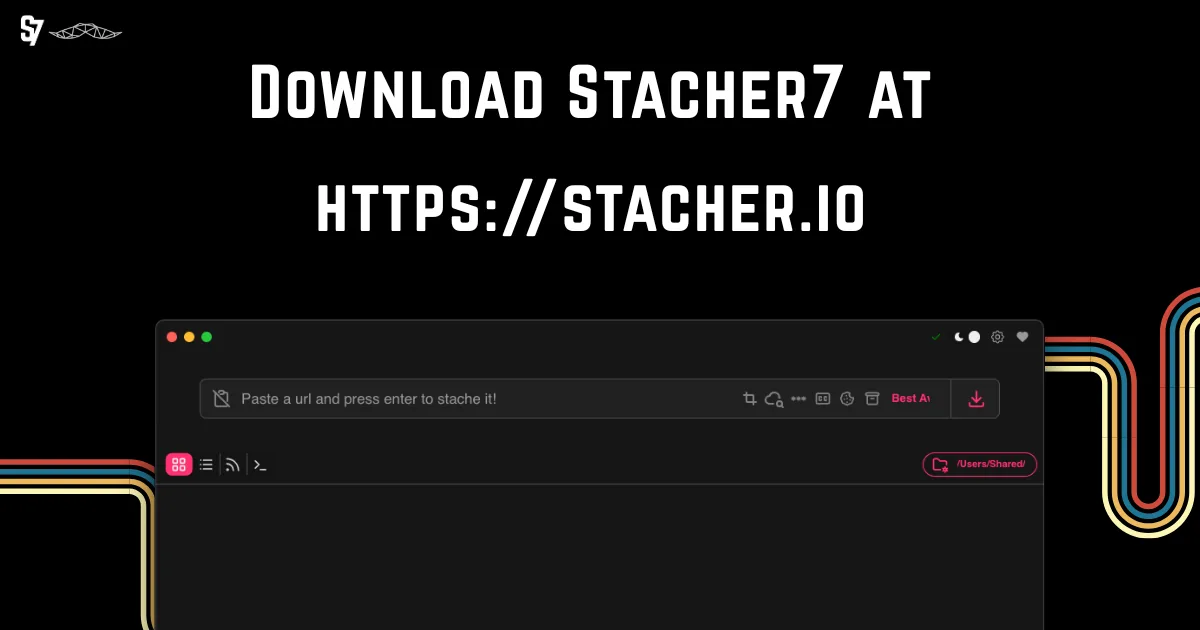
The Windows button uses api.stacher.io and redirects to Stacher's release storage. The current verified file is the 64-bit EXE below; the endpoint, final response, filename and byte size were checked on August 22, 2026.
64-bit x64
stacher-7.1.12-setup.exe · 178.9 MiBThis independent site does not mirror the EXE. Compare the version and source with the official Stacher download page before opening it. Open official download details
The verified Windows package is an x64 installer for 64-bit Windows. The official endpoint currently resolves to stacher-7.1.12-setup.exe, with a final HTTP 200 response and 187,614,816 bytes, approximately 178.9 MiB. The file's release object reports a July 9, 2026 Last-Modified timestamp; that is a storage timestamp, not a separately published release date.
Most current Windows 10 and Windows 11 computers use 64-bit x64 software. If you need to check, open Settings > System > About and read System type. Do not choose a Mac DMG or Linux DEB because the package formats are not interchangeable. Do not use an old third-party listing simply because its filename looks similar; stale listings can point to a different Stacher release.
| Build | Official file | Verified size | Use it when |
|---|---|---|---|
| Windows x64 | stacher-7.1.12-setup.exe | 178.9 MiB | System type shows a 64-bit operating system |
| macOS Apple silicon | Stacher_Setup_7.1.12_arm64.dmg | 132.0 MiB | Not a Windows package; use only on an Apple M-series Mac |
| Linux Debian amd64 | stacher7_7.1.12_amd64.deb | 97.7 MiB | Not a Windows package; use on a compatible Debian-based system |
A correct filename identifies the intended build, but it does not by itself prove that every copy online is trustworthy. Keep the first-party source and the download date with your installation notes.
Use the verified Windows button above and let the browser finish the transfer before opening the file. A partial download can produce a confusing launch error, while an old copy in Downloads can make you troubleshoot the wrong version. Before starting the installer, check that the filename includes 7.1.12 and ends in -setup.exe.
Run the EXE from a location you control, follow the normal Windows installer prompts and choose a destination with enough space. If Windows shows an app-reputation or SmartScreen message, read the exact warning and confirm that the file came from the verified first-party endpoint. Do not disable Windows security globally just to force an unknown or mismatched installer to run.
Windows reputation checks can be more cautious with a new, less frequently downloaded or recently replaced installer. A warning is a reason to verify the publisher context, filename and source; it is not proof that the file is malicious, and it is not a reason to click through blindly. If the filename, version or redirect destination does not match the checked first-party release, stop and obtain a fresh file from the official endpoint.
Only install software you are authorized to use. Stacher does not grant permission to download copyrighted or access-restricted media.
Stacher supplies a graphical workflow while yt-dlp handles supported media extraction and transfer. Keep the managed yt-dlp component unless you intentionally maintain a custom binary and can confirm its path and version in the detailed log. Updating the app and updating the downloader engine are related but separate actions.
FFmpeg is needed for many jobs that merge separate video and audio streams, remux containers, extract audio, embed metadata or process subtitles. A download that reaches 100 percent can still spend time in FFmpeg post-processing. Treat that as a processing stage rather than automatically increasing network concurrency.
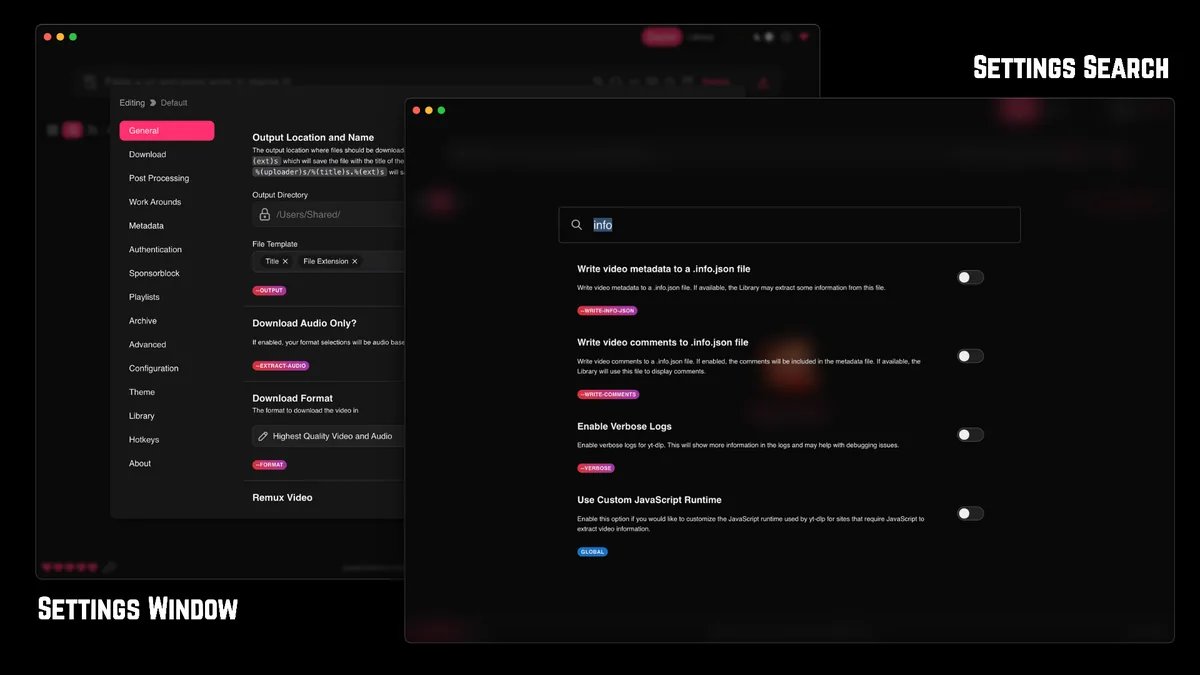
Choose a short local output folder that your Windows account can write to. Avoid using a protected system folder, a full drive, a disconnected network share or a cloud-synchronized folder for the first test. The final destination in Stacher's log is more reliable than guessing from the installer location.
Stacher saves media to the output folder selected in its settings or job options, not necessarily beside the application. If File Explorer cannot find a completed file, read the final filename and destination in the job log. Post-processing can rename, merge or move a temporary file after the transfer stage.
The interface, yt-dlp component, FFmpeg and the source website each have different failure modes. Change one setting at a time so the log remains useful.
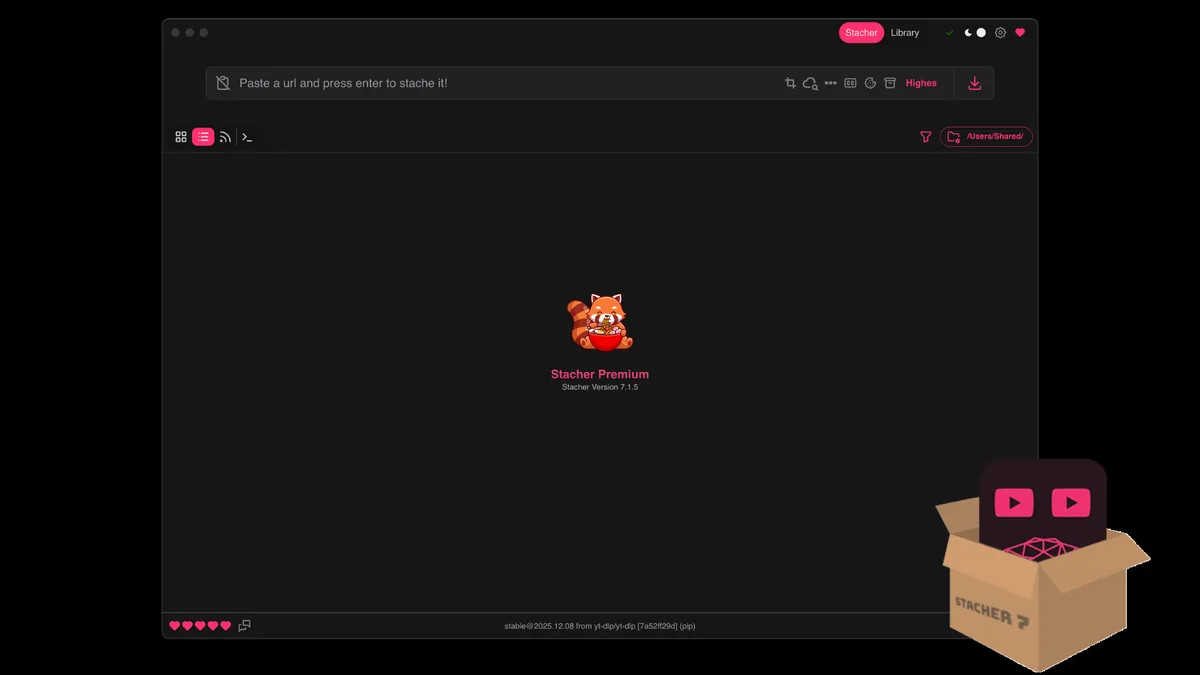
Start by separating an application launch problem from a download-job problem. If Stacher will not open, check the EXE source, system architecture, Windows security message and whether another copy is already installed. If the interface opens but a job fails, update managed yt-dlp, test one permitted public URL, use a writable local folder and inspect the first specific error in the detailed log.
A waiting job is not always a broken app. Source-site changes, authentication requirements, regional availability, network filtering, antivirus inspection and missing FFmpeg can all appear as a stalled download. If the progress reaches completion and then pauses, check CPU, disk and post-processing status before canceling or reinstalling.
| Symptom | Likely cause | First useful check |
|---|---|---|
| Installer will not run | Incomplete file, wrong copy or Windows security decision | Confirm source, filename, completed transfer and exact warning |
| App opens but download will not start | Old yt-dlp, unsupported URL, authentication or network block | Update managed yt-dlp and test one public permitted URL |
| Permission denied | Protected or unavailable output folder | Test a short local folder that your account owns |
| FFmpeg not found | Missing or incorrect post-processor path | Configure FFmpeg through a trusted supported route |
| Old version still appears | Another Stacher copy or custom component path is active | Check the version and executable path in the detailed log |
| Slow after reaching 100 percent | Merge, conversion, metadata or disk activity | Check post-processing, free space and destination activity |
Use one public permitted URL, the default combined format, no custom arguments, no cookies, no proxy and a short local output path. If that succeeds, add quality rules, authentication, subtitles or post-processing one at a time. This identifies the setting that introduces the failure instead of combining several uncertain changes.
Do not publish cookie files, private URLs or full authenticated logs when asking for help. Remove session data before sharing diagnostics.
The verified Stacher Windows endpoint still resolves to version 7.1.12 as of August 22, 2026. Stacher and its managed yt-dlp component can have separate update cycles, so record both versions when diagnosing a regression. If a current app opens normally but one extractor fails, update the managed component before removing the whole application.
To update, finish active jobs, quit Stacher, install the correct current Windows build and run one controlled test. To uninstall, use Windows Settings > Apps > Installed apps, find Stacher and choose Uninstall. Removing the application does not automatically mean that downloaded media, custom output folders or optional support data are removed; review those locations separately before deleting anything.
A full reinstall is usually unnecessary when the underlying issue is an extractor update, source-site change or output-folder permission.
Yes. The checked first-party Windows build is a 64-bit x64 installer named stacher-7.1.12-setup.exe. Confirm your System type before installing and use the official endpoint rather than an old mirror.
The first-party Windows endpoint resolved to Stacher 7.1.12 when checked on August 22, 2026. The final release response was HTTP 200 with an application/octet-stream MIME type and 187,614,816 bytes. This page does not claim a separate release-note date or safety-scan result.
The guide targets the current 64-bit Windows desktop workflow used by Windows 10 and Windows 11 systems. Check System type, follow your organization's installation policy and read the exact Windows security prompt if the installer is blocked.
Reputation checks can be cautious with a new or less frequently downloaded installer. Verify the first-party source, filename and version first. Do not disable Windows security globally or continue with a mismatched EXE just because another site calls it safe.
FFmpeg is needed for many merges, remuxes, audio extractions, conversions, metadata operations and subtitle-related post-processing tasks. A simple combined format may work without it, but the detailed log should decide whether FFmpeg is the missing component.
They are saved to the output folder selected in Stacher, not necessarily beside the application or installer. Read the final destination and filename in the detailed log, especially when post-processing renames or moves the file.
Common causes include an outdated yt-dlp component, a changed source website, authentication, a blocked network route, an unwritable folder or missing FFmpeg. Start with one permitted public URL and inspect the first specific log error before changing several settings.
Not necessarily. The app and the output folder are separate. Review downloaded media, custom folders and optional settings before deleting them, and confirm the Windows uninstall target before emptying the Recycle Bin.