
macOS
Apple silicon (M1, M2, M3, M4 or later)
Stacher_Setup_7.1.12_arm64.dmg · 132.0 MiBThe official Stacher for Mac download offers Apple silicon and Intel DMGs. This guide covers processor selection, installation, first-run setup and common macOS security or permission problems without unofficial mirrors.
Quick answer: Open Apple menu > About This Mac, then choose the official Stacher for Mac download for your processor: arm64 for Apple M-series or x64 for Intel. Both official endpoints were checked on August 22, 2026 and resolve to stable 7.1.12 files. Install from the DMG, keep managed yt-dlp enabled, add FFmpeg when merging is required and use a writable local output folder.
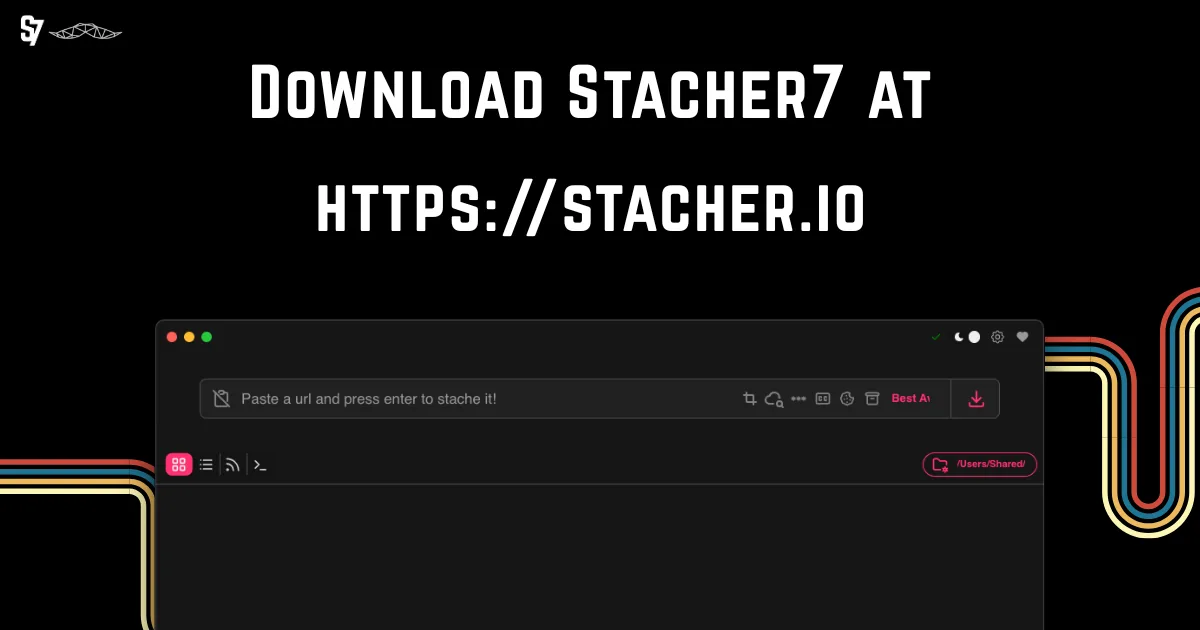
Each official Stacher for Mac download button uses api.stacher.io and redirects to Stacher's release storage. Choose Apple silicon for an M-series Mac or Intel for an older Intel processor.
Apple silicon (M1, M2, M3, M4 or later)
Stacher_Setup_7.1.12_arm64.dmg · 132.0 MiBIntel processor
Stacher_Setup_7.1.12_x64.dmg · 138.4 MiBVersion, filenames, response type and file sizes were rechecked on August 22, 2026. Compare with the official Stacher download page
The processor distinguishes the two Mac downloads. Apple silicon covers M-series chips; older Macs may use Intel. The workflow remains the same.
Click Apple menu > About This Mac. If the window shows Chip followed by Apple M1, M2, M3, M4 or a later Apple chip, choose arm64. If it shows Processor followed by Intel, choose x64. Do not decide from the MacBook model name alone because visually similar machines were sold with different processors. If Stacher is already installed, Activity Monitor can show whether a process is Apple or Intel, but About This Mac is the simpler pre-download check.
| Mac type | Official file | Verified size | Use this when |
|---|---|---|---|
| Apple silicon | Stacher_Setup_7.1.12_arm64.dmg | 132.0 MiB | About This Mac shows an Apple M-series chip |
| Intel Mac | Stacher_Setup_7.1.12_x64.dmg | 138.4 MiB | About This Mac shows an Intel processor |
These official update endpoints currently resolve to stable first-party release URLs. This independent site does not repackage the DMG files.
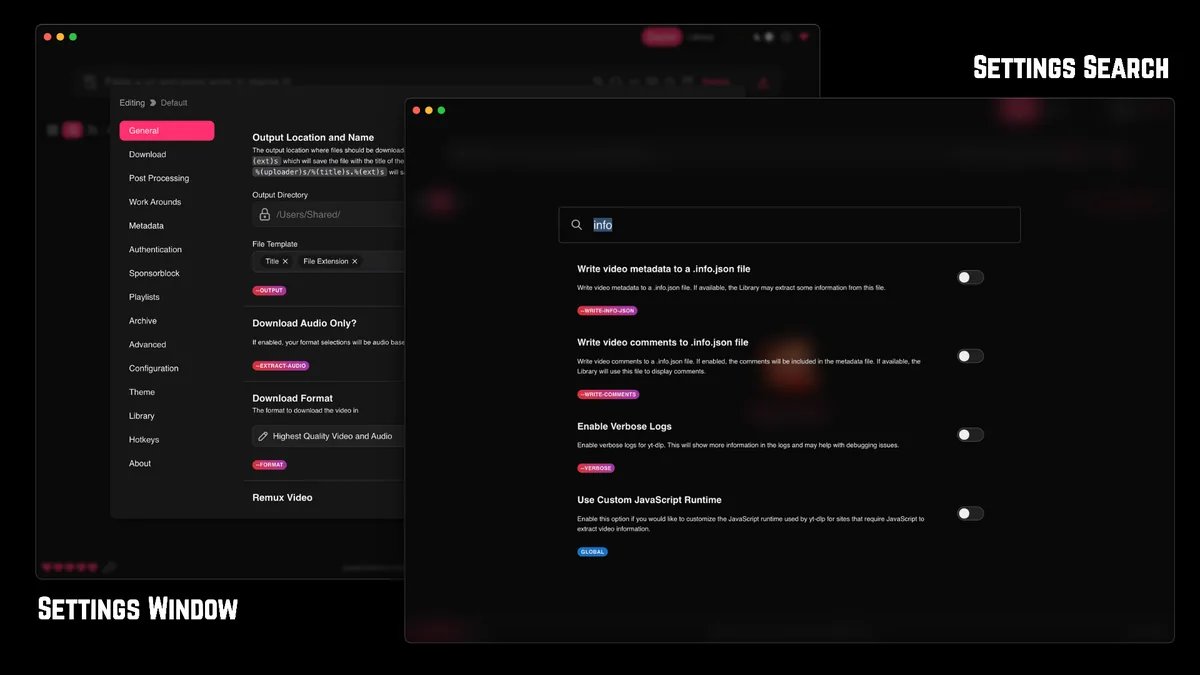
Use the matching button above, then wait for the DMG to finish downloading before opening it. A partial file or interrupted browser transfer can produce a mount error that looks like an application problem. Finder normally places the completed file in Downloads unless your browser uses another destination. Confirm the filename includes 7.1.12 and either arm64 or x64 before continuing.
Open the DMG and follow the normal macOS drag-to-Applications workflow shown in the mounted window. Launch Stacher from Applications rather than repeatedly opening the copy inside the disk image. After the first successful launch, eject the mounted Stacher volume and keep or delete the downloaded DMG according to your own software archive policy.
Do not disable macOS security globally. First confirm that the DMG came from the official Stacher endpoint and that the download completed. Then Control-click the installed app in Applications and choose Open if macOS offers that documented exception path. If the message says the file is damaged, delete the incomplete DMG, download it again and verify the filename and size before retrying.
A verified source reduces supply-chain risk, but you should still review the current macOS prompt and never bypass warnings for a file whose origin is unclear.
Stacher provides the interface while yt-dlp reads supported sites and performs the media request. Keep the managed yt-dlp component unless you deliberately maintain a custom binary and can confirm its path and version in the detailed log.
FFmpeg handles merging, remuxing, audio extraction and metadata or subtitle operations. Configure it through Stacher's supported settings when the selected format needs post-processing.
Choose a simple writable local output folder before testing. If the log reports permission denied, test a folder you own before changing yt-dlp arguments.
Stacher stores files in the output folder selected in its settings or job options. That folder is separate from the Stacher application, the mounted DMG and the yt-dlp executable path. The detailed log normally prints the destination or final moved filename, so use it when Finder search cannot locate a completed download.
Only download media you own or are authorized to save. Stacher and yt-dlp do not grant permission or bypass source-site rules.
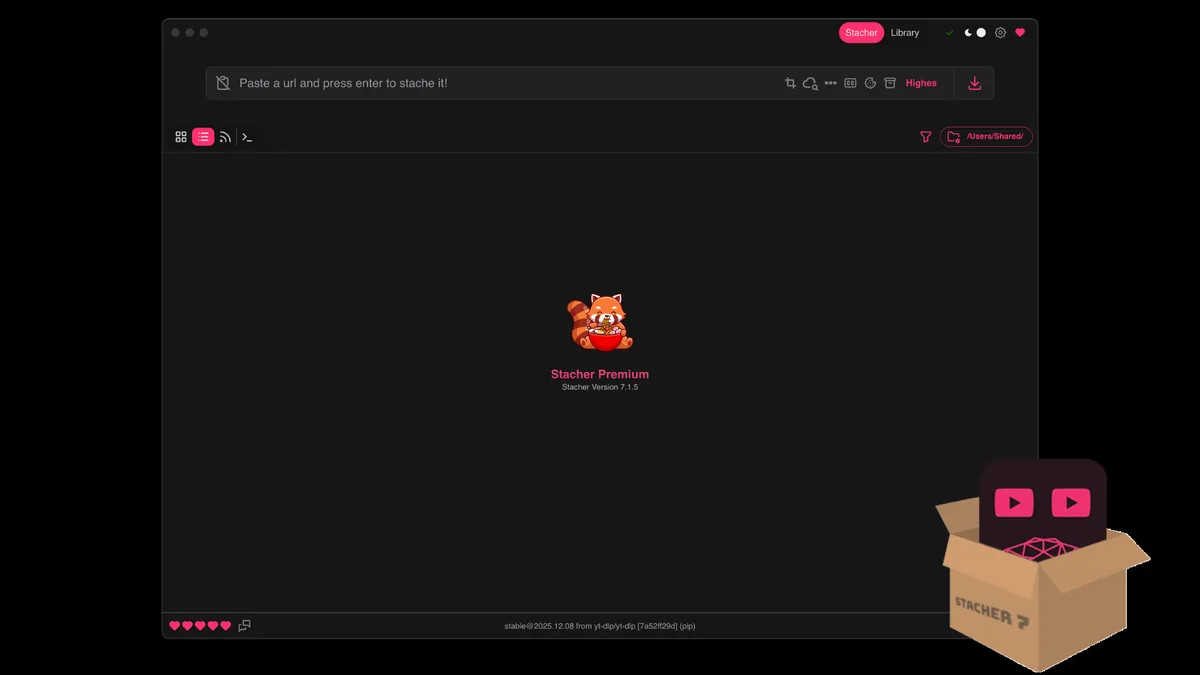
Start by separating installation problems from download-job problems. If Stacher never opens, check architecture, DMG completion and the exact macOS security message. If the interface opens but a job fails, update managed yt-dlp, test one permitted public URL, use a local writable folder and read the first specific error in the detailed log. Reinstalling the same app rarely fixes a source-site extractor change or missing FFmpeg.
A job that pauses during post-processing may have already downloaded its media streams. Watch the Stacher status and the log before canceling. Merging large files can be CPU- and disk-intensive, while a cloud folder can delay the final move. If every site times out, check VPN, proxy, DNS, firewall and network filtering; if only one site fails, the source or its authentication requirements are more likely.
| Symptom | Likely cause | First useful check |
|---|---|---|
| App will not open | Wrong architecture, incomplete DMG or macOS security decision | Confirm chip, filename, source and exact prompt |
| Download could not start | Old yt-dlp, unsupported URL, authentication or network | Update managed yt-dlp and test one public permitted URL |
| Permission denied | Output folder or removable-volume access | Test a new local folder and review macOS permission settings |
| FFmpeg not found | Missing or incorrect post-processor path | Install/configure FFmpeg through a trusted supported route |
| Old version still appears | Custom yt-dlp path or another Stacher copy | Check the executable and version printed in the detailed log |
| Slow at the end | Merge, conversion or cloud synchronization | Check post-processing status, disk space and destination activity |
Use one public, permitted URL; the default combined format; no custom arguments; no cookies; no proxy; and a short local output path. If that succeeds, add authentication, quality rules, subtitles or post-processing one change at a time. This identifies the setting that introduces the failure instead of mixing several causes.
Do not post cookie files, private URLs or full authenticated logs publicly. Remove session data before asking for help.
Stacher and yt-dlp update separately. The official Mac endpoints currently resolve to Stacher 7.1.12 and were verified on August 22, 2026. Record both versions and change one component at a time while troubleshooting.
To update, finish active jobs, quit the app, install the correct current DMG into Applications and run one controlled test. To uninstall, move Stacher from Applications to Trash. Downloaded media remains in its selected output folder, while optional preferences and logs may remain in your user Library.
Review support data before deleting it.
If your goal is only to fix one extractor, update managed yt-dlp first; a full Stacher reinstall is usually unnecessary.
Yes. The verified Stacher 7.1.12 Apple silicon file is Stacher_Setup_7.1.12_arm64.dmg. Choose it when About This Mac shows an Apple M-series chip.
Use Stacher_Setup_7.1.12_x64.dmg when About This Mac identifies an Intel processor. Do not use the arm64, Windows EXE or Linux DEB package.
Check the processor architecture, confirm the DMG completed, verify the official source and read the exact macOS warning. A wrong build, incomplete file and security decision require different fixes.
Stacher manages a yt-dlp component and can also use a custom path. Most users should keep the managed component and confirm its active version in the detailed log.
You need FFmpeg for many highest-quality merges, audio conversions, remuxing and metadata or subtitle operations. Some simple combined formats can download without it.
They are saved to the output folder selected in Stacher, not inside the app or DMG. The detailed log normally shows the final destination and filename.
Quit Stacher and move it from Applications to Trash. Downloaded media remains in its output folder, and optional settings or logs may remain in your user Library until you review and remove them.
This site is independent, but every official Stacher for Mac download button uses a first-party api.stacher.io endpoint that resolves to Stacher's release storage. The files were verified on August 22, 2026.